Lightspeed X-Series - IDC Dashboard Setup Guide
Table of Contents
Notice
Please read this IDC Dashboard Setup Guide before using this product and retain it for future reference. It contains useful instructions and troubleshooting tips that can help you get the most out of your Lightspeed X-Series to NetSuite bundle.
Product Overview
Application Overview
In8Sync’s Lightspeed X-Series to NetSuite Connector integrates Lightspeed X-Series with all core NetSuite modules. Lightspeed X-Series to NetSuite is an ideal Retail POS solution, whether you're looking for an easy-to-deploy standalone method or a more advanced migration path towards an integrated end-to-end POS/ERP offering.
In8Sync’s Lightspeed X-Series to NetSuite Connector is now built as part of In8Sync DirectConnect (IDC), an Advanced Integration Platform running directly within your NetSuite account. The IDC platform provides a user-friendly central management dashboard for all connections, with easy-to-understand status reports, error handling, and configuration tools. Built to be used by business operators, the IDC dashboard provides all necessary information for users to be able to identify, correct and reprocess any data flow errors, and even install and configure new connections.
With the IDC platform, users have the capability to setup, configure, run, and monitor components in the In8Sync Lightspeed X-Series to NetSuite (Legacy) integration.
Key Features
In8Sync’s DirectConnect Core Product Key Features
Directly Installed into your NetSuite account
In8Sync’s DirectConnect eliminates the need for an external integration platform ('Middleware')
Protected by NetSuite’s security protocols
Integration Management Dashboard
Manage all your applications within a single dashboard
Easy-to-read user interface
Monitor connection statuses and activity
Identify, correct, and reprocess data errors
Schedule and initiate connector features, such as flows and triggers
Easy to Use Setup Features
The self service wizard guides users through installation and configuration steps, offering pre-mapped configurations to simplify the setup process.
Change common connection settings, including account mappings and sync conditions, without the need for in-depth technical expertise
Run tests prior to going live to ensure preferred configuration and setup that matches your needs.
Prerequisites
NetSuite Account
You must have a valid NetSuite Account.
Lightspeed X-Series Account
You must have a valid Lightspeed X-Series Account.
Generate Personal Token in Lightspeed X-Series Before Getting Started
A Lightspeed X-Series Personal Token is also needed as part of the installation process. This can be quickly and easily handled within Lightspeed X-Series. For instructions on generating this token, please refer to the following documentation: https://support.vendhq.com/hc/en-us/articles/204886420-Personal-Tokens
Installation
Installing the bundle
Installation of the In8Sync Lightspeed X-Series bundle requires that you follow the instructions below in your NetSuite account.
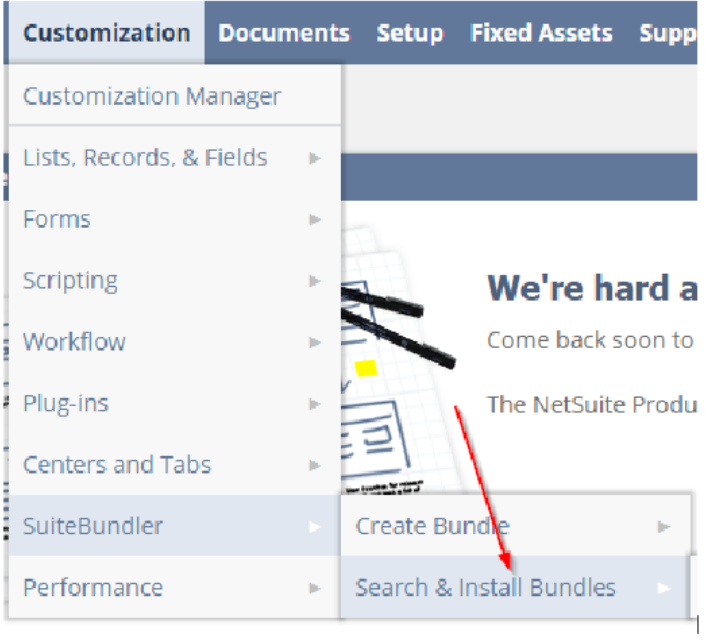
First, visit the Customization Tab > SuiteBundler > Search & Install Bundles
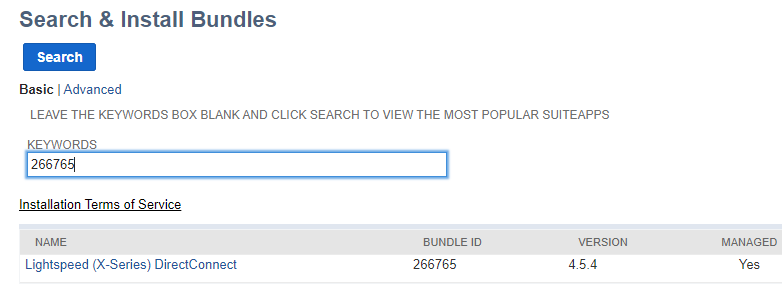
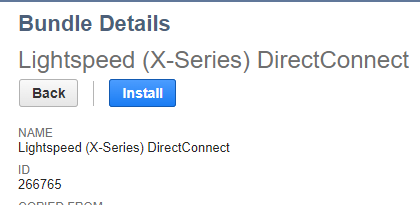
Search for the Bundle with ID 266765. Once found, click on the name 'Lightspeed X-Series DirectConnect'.
Under the Bundle Details page, click Install. Once on the Preview Bundle Install page, click Install Bundle.
As the bundle installs, you will be able to monitor progress of the installation under the Status column. You may click the Refresh button at any time to check updated progress. Once the installation is complete, a green checkmark will appear under Status.
Installing the In8Sync DirectConnect SuiteApp
The In8Sync DirectConnect Dashboard allows users to to manage the Lightspeed X-Series to NetSuite bundle through a custom-built dashboard. In addition to installing the Lightspeed X-Series to NetSuite Bundle, we will also install the IDC SuiteApp, per the instructions below.
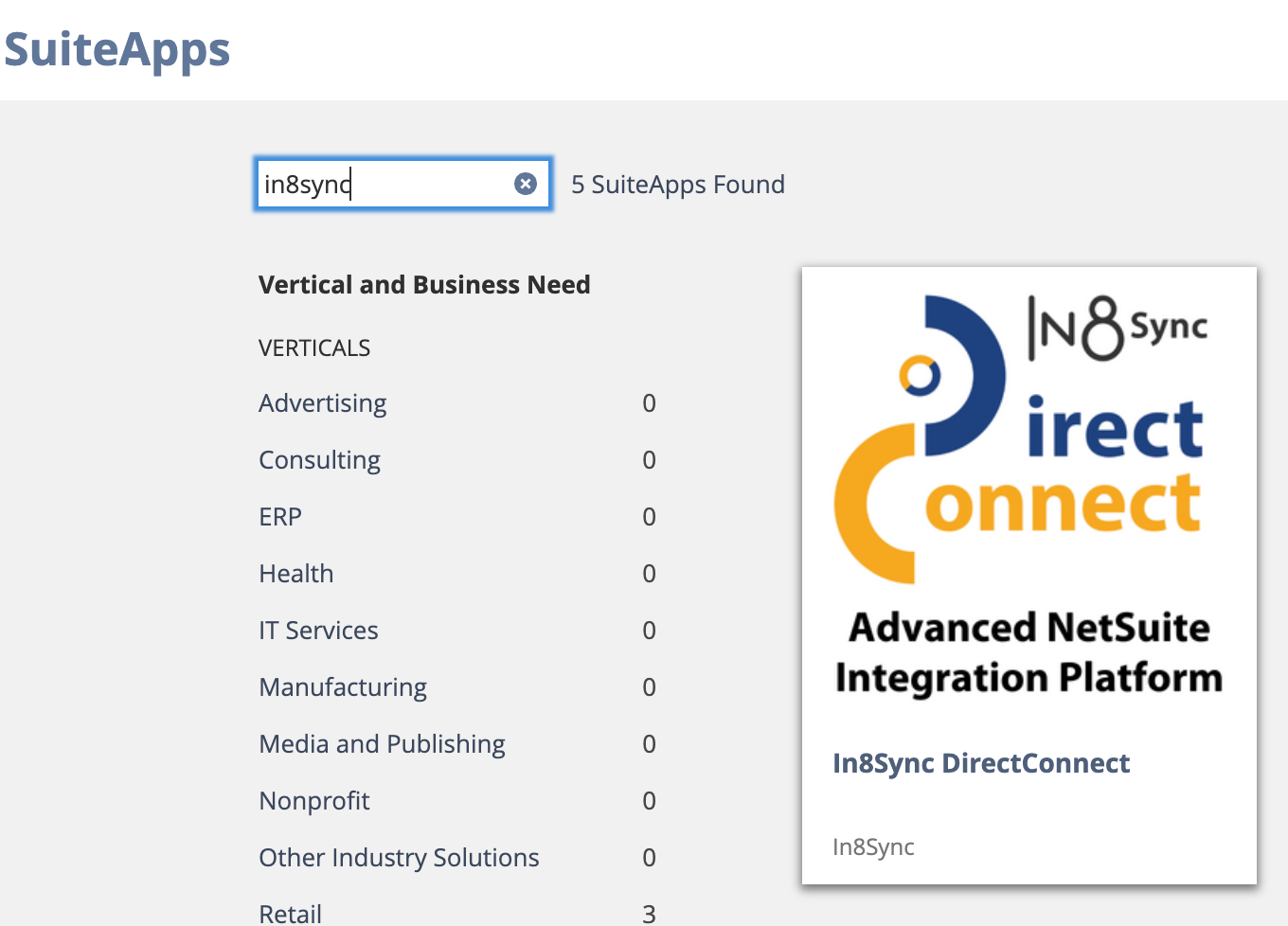
Visit the SuiteApps menu. Search for ‘In8Sync' and click on the SuiteApp 'In8Sync DirectConnect’.
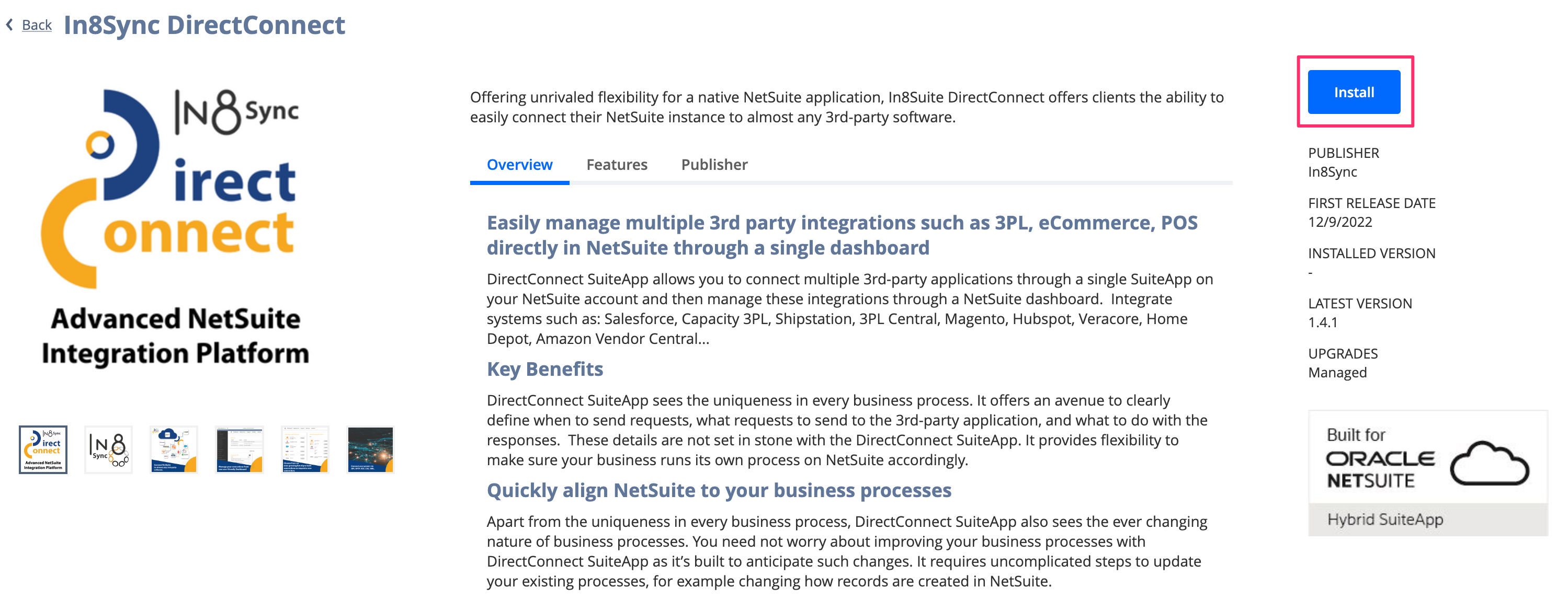
Click on the 'Install' button.
Updating
As explained in the above graphic, Lightspeed X-Series to NetSuite DirectConnect is a bundle that manages multiple integrations and is regularly updated to ensure that accounts have access to the latest features and enhancements. In8Sync pushes new updates to these accounts automatically.
Uninstalling
To uninstall the Bundle, please follow the instructions below:
Visit the Customization Tab > SiteBundler > Search & Install Bundles > List
Find the Bundle by Name. Hover over the green Edit icon and click on Uninstall.
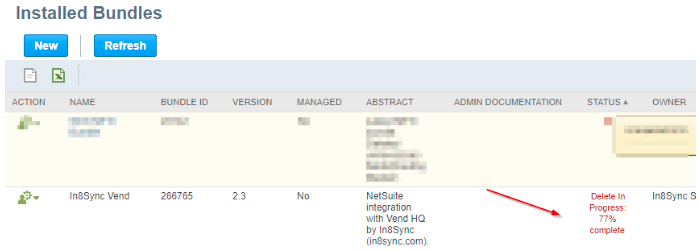
The next page will display the status of the uninstallation of the Bundle:
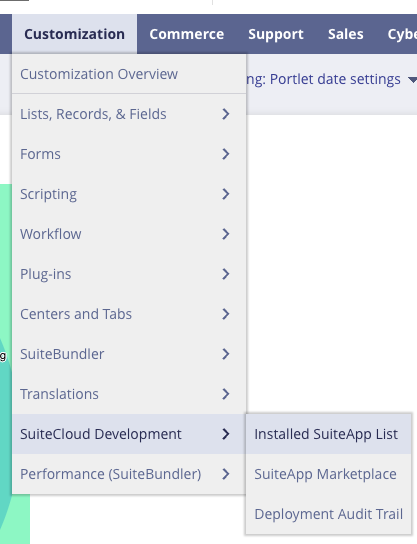
To uninstall the SuiteApp Dashboard, visit the Customization menu > SuiteCloud Development > Installed SuiteApp List.
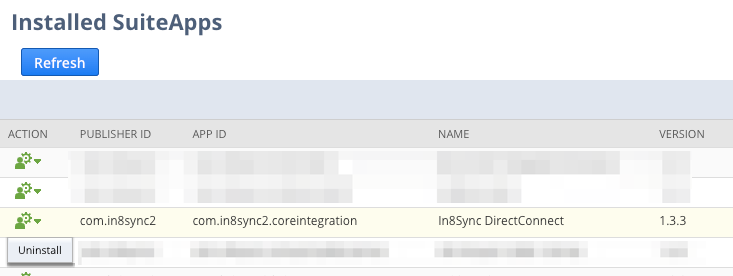
Find 'In8Sync DirectConnect' and click Uninstall.
Setup
Setup Wizard
Visit the IDC menu > Management Tools > Dashboard to open the dashboard.
On the left column menu, click ‘Lightspeed (X-Series)’ and then click the 'Setup Wizard' tab.
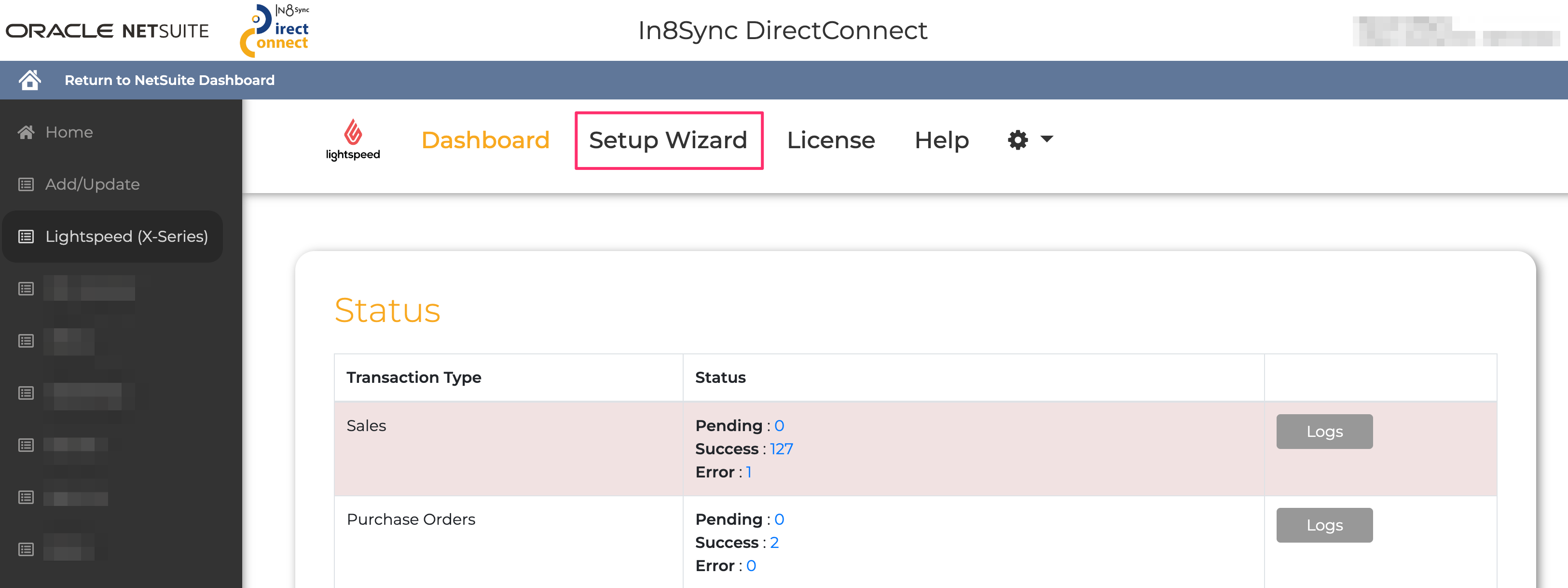
This will open the Setup Wizard and allow you to begin configuring the integration.
Setup Wizard: Getting Started
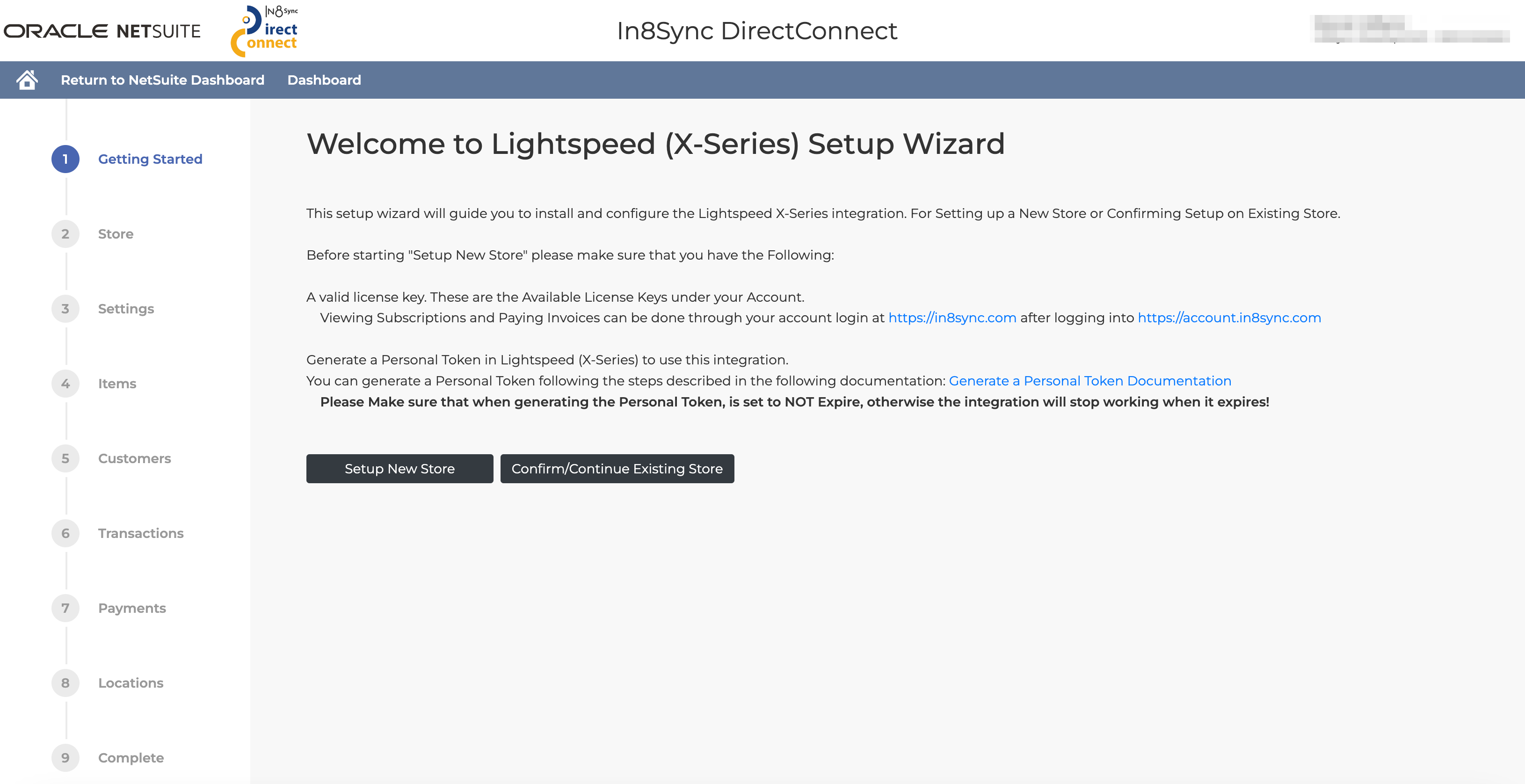
Select if you wish to set up a new store or continue an existing store’s configuration.
Before beginning a new store setup, please make sure that you have the following:
A valid License Key. These are the available License Keys under your Account.
Viewing Subscriptions and Paying Invoices can be handled through your account login at https://in8sync.com after logging into https://account.in8sync.com
A Personal Token in Lightspeed (X-Series)
You may generate a Personal Token following the steps described in the following documentation: Generate a Personal Token Documentation
(Please Note: Be sure that when generating the Personal Token, it is set to NOT Expire. If an expiration due date is noted, the integration will stop working when it expires!)
Setup Wizard: Store Setup
Now that we’re ready to set up a new store, let’s go through the setup process within the Lightspeed X-Series DirectConnect (Legacy) Setup Wizard.
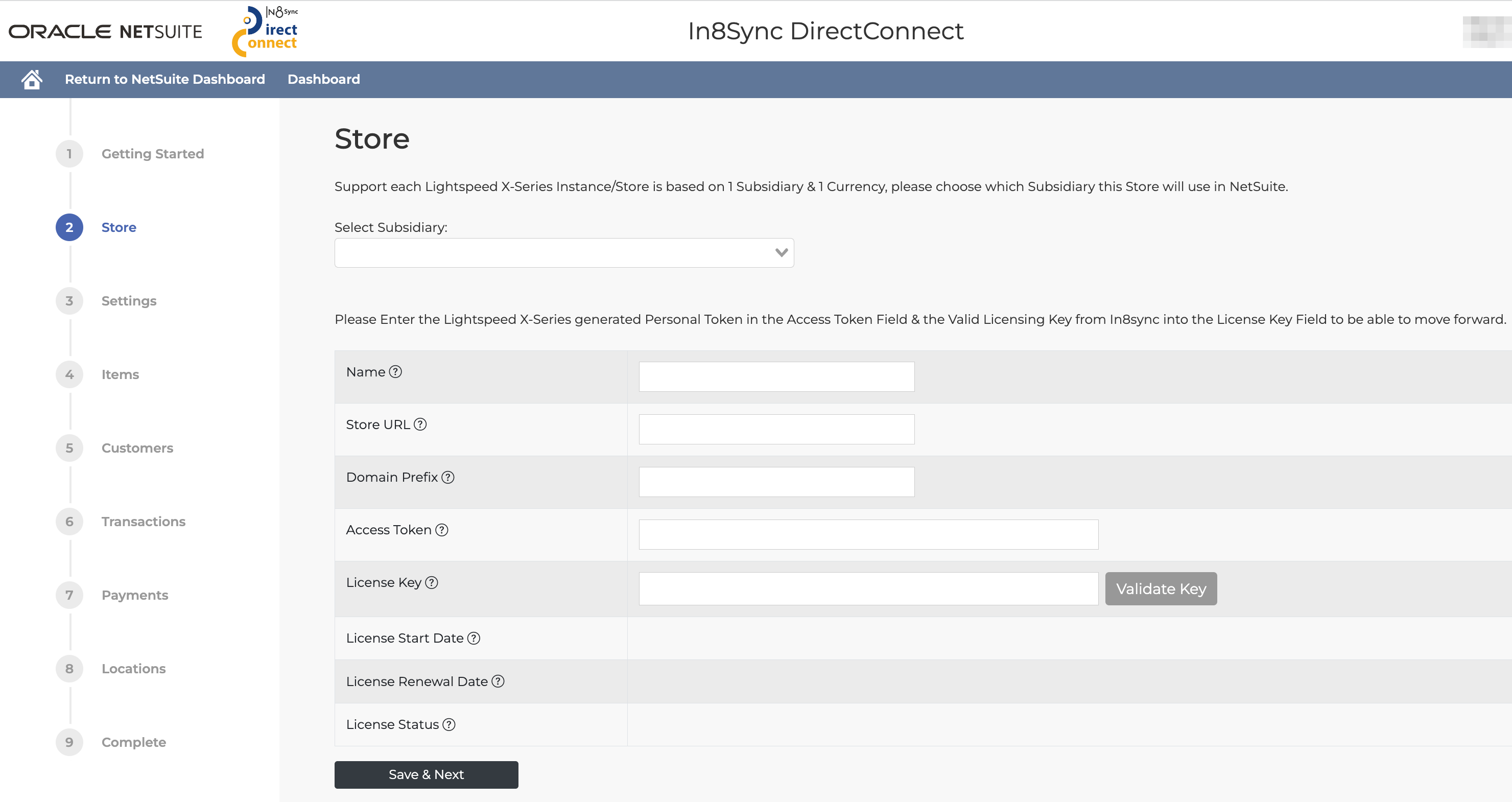
If your account has the ‘Subsidiaries’ feature, select the appropriate subsidiary for the store.
Entering Store URL, Domain Prefix, Access Token, and & License Key
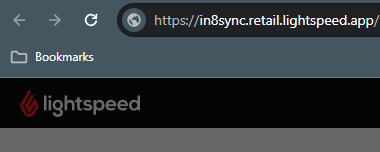
Note your exact Lightspeed X-Series URL.
It should be in this format:
https://<site>.retail.lightspeed.app
In the example below, the URL is: “https://in8sync.retail.lightspeed.app”.
Enter a name to identify the store. This will include:
the store URL (i.e. https://in8sync.retail.lightspeed.app)
the domain prefix (i.e. in8sync),
the Access Token - This is the Personal Token that you generated in the Lightspeed app
the License Key - a valid and active Product Key from In8Sync. If you are unsure whether your License Key is valid and active, you may enter the key details and click Validate Key to ensure it is valid before proceeding.
Click Save & Next. Once saved, the Settings page will open.
Setup Wizard: Settings
This section will describe each setup step in the Settings portion of the Lightspeed X-Series to NetSuite DirectConnect (Legacy) Setup Wizard.
NetSuite Account Id
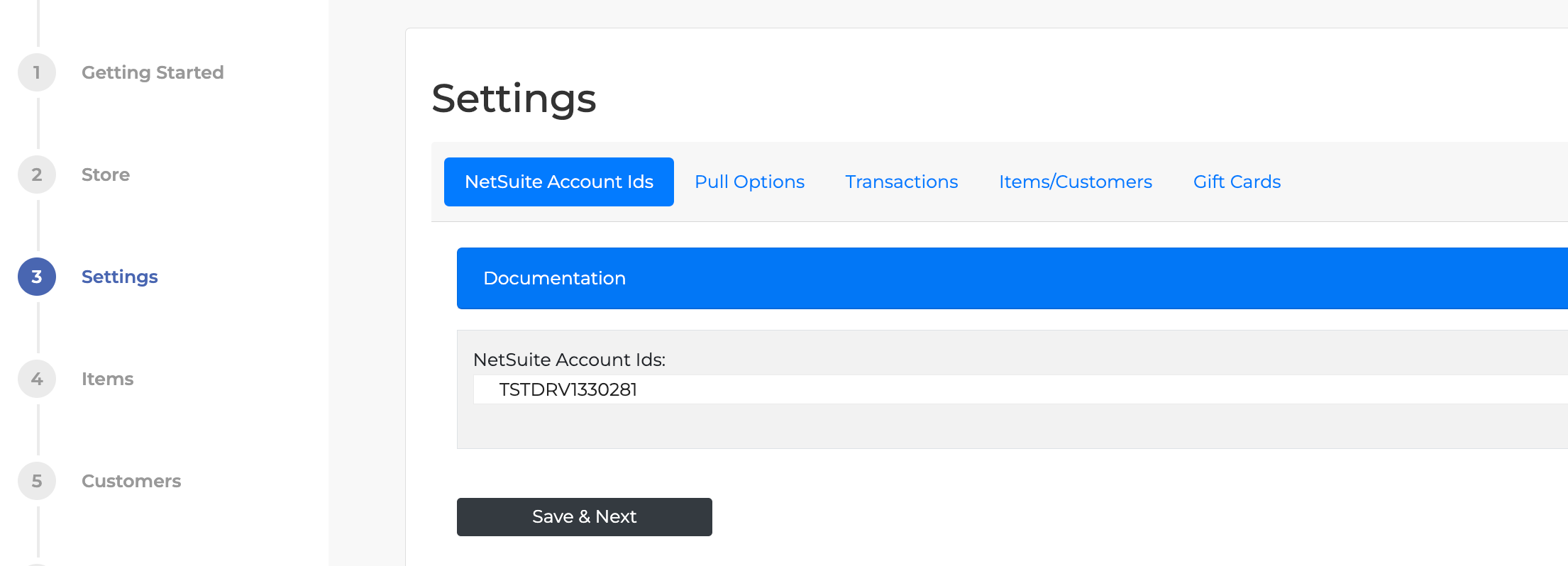
Enter the NetSuite Account ID in the appropriate field. If there are multiple IDs, separate each ID with a comma.
When listing the NetSuite account ID(s) in the field, keep in mind that the integration will ONLY run in the NetSuite Account(s) which match the listed Account ID(s). If no Account ID is listed, it can run in any account.
Pull Options
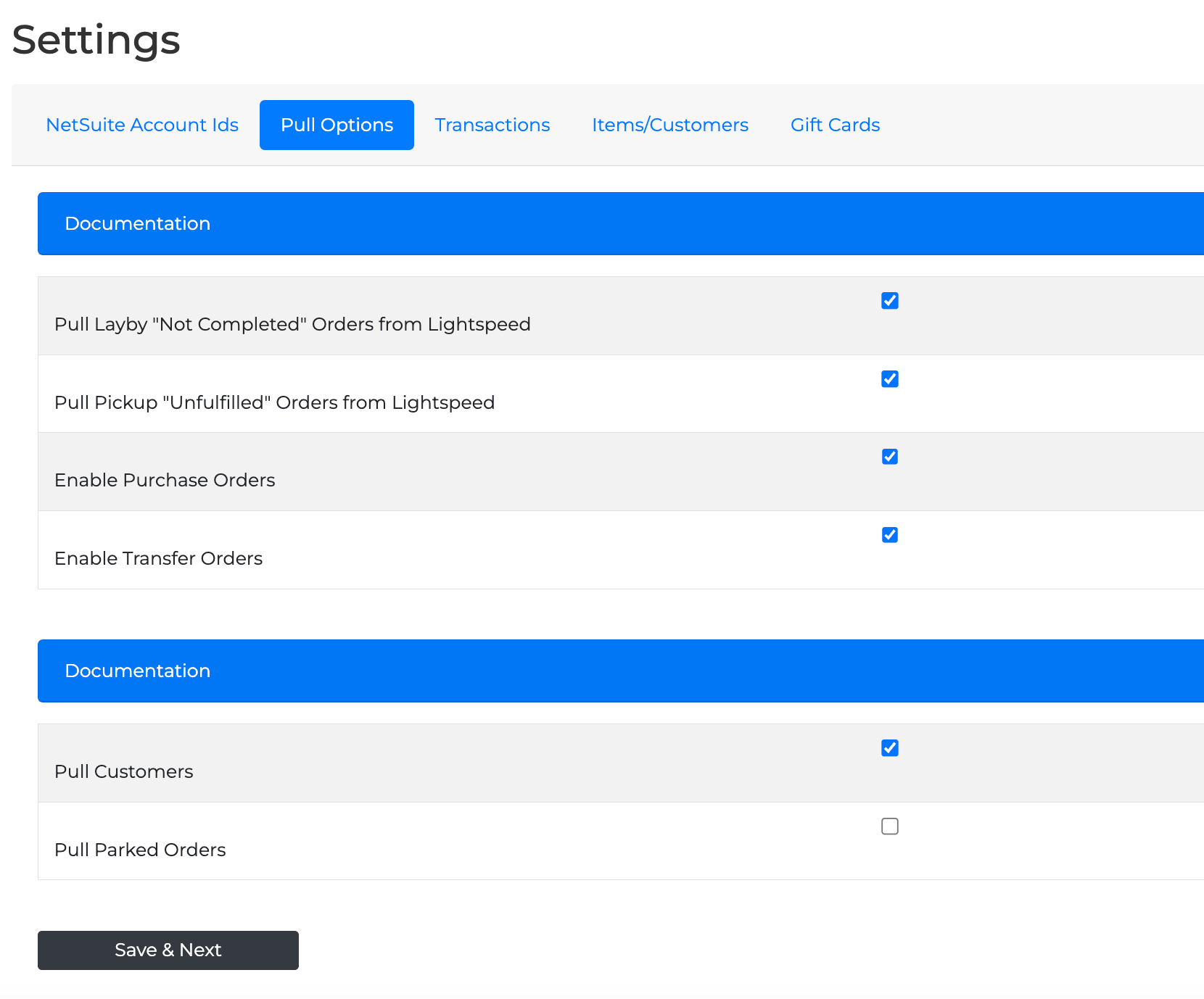
Pull Layby "Not Completed" Orders from Lightspeed
If you are going to be using Lightspeed Layaway (Layby) orders and want those pulled to NetSuite as Sales Orders with Deposits, please check this box.
Pull Pickup "Unfulfilled" Orders from Lightspeed
If you plan on using Lightspeed Pickup Unfulfilled orders and want those pulled to NetSuite as Sales Orders with Deposits, please check this box.
Enable Purchase Orders
If you wish to enable two-way Purchase Order Sync, please check this box.
(Please Note: If this setting is enabled through the Dashboard, checking this box will active the Flow Parameter. If not enabled through Dashboard, the Flow Parameters (purchaseorder & purchaseorderitems) must be Active.)
Enable Transfer Orders
If you wish to enable two-way Transfer Order Sync, please check this box.
(Please Note: If this setting is enabled through the Dashboard, checking this box will active the Flow Parameter. If not enabled through Dashboard, the Flow Parameters (transferorder & transferorderitems) must be Active.)
Transactions
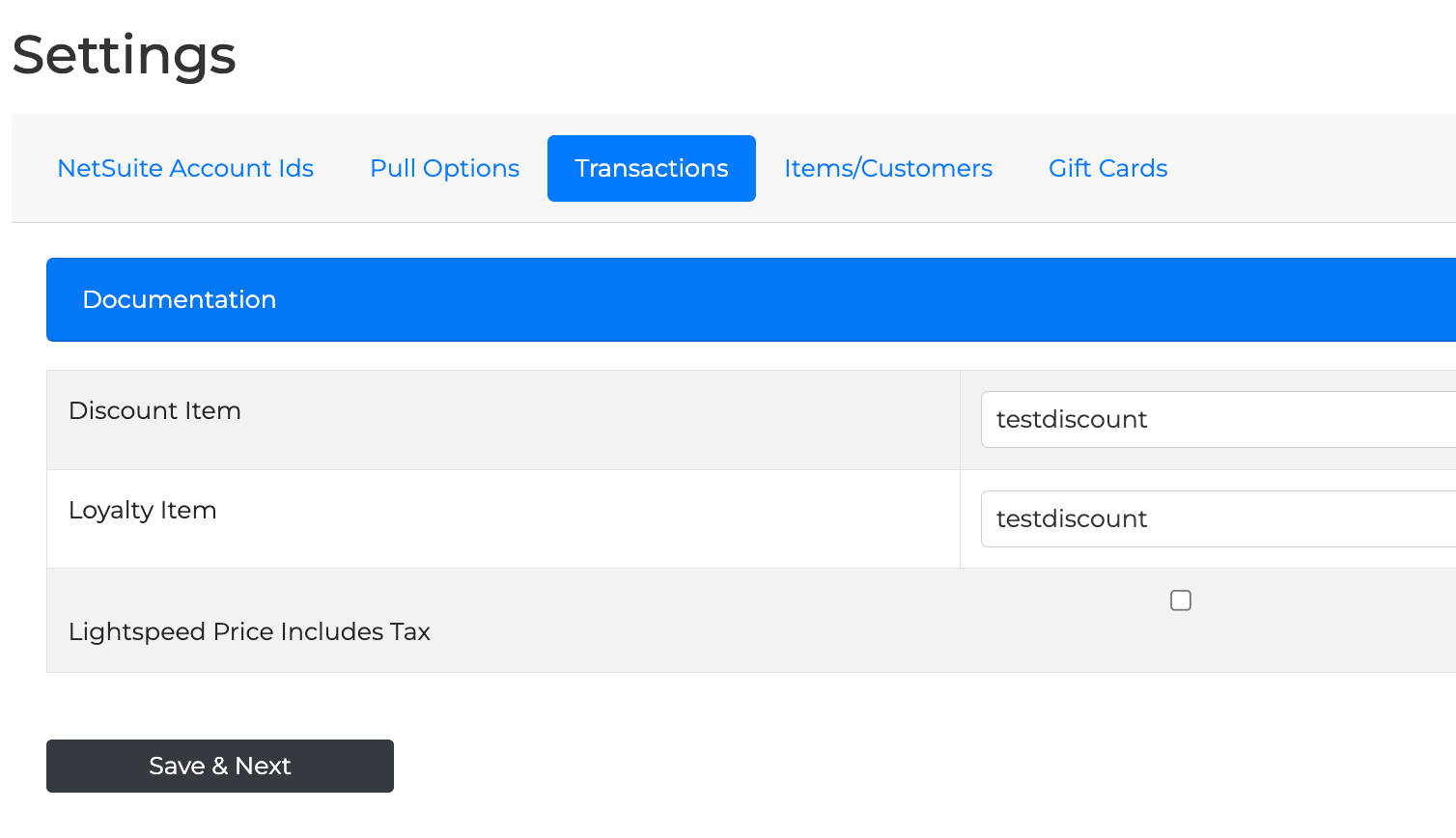
Discount Item
This is required to handle Header or Line Discounts from Lightspeed to NetSuite Transactions.
Loyalty Item
This is used with the default Lightspeed Loyalty system to list the Redeeming loyalty amount as a Transaction Line.
Lightspeed Price Includes Tax
If the Lightspeed Instance is a ‘Price includes Tax' instance, this must also be enabled.
Items/Customers
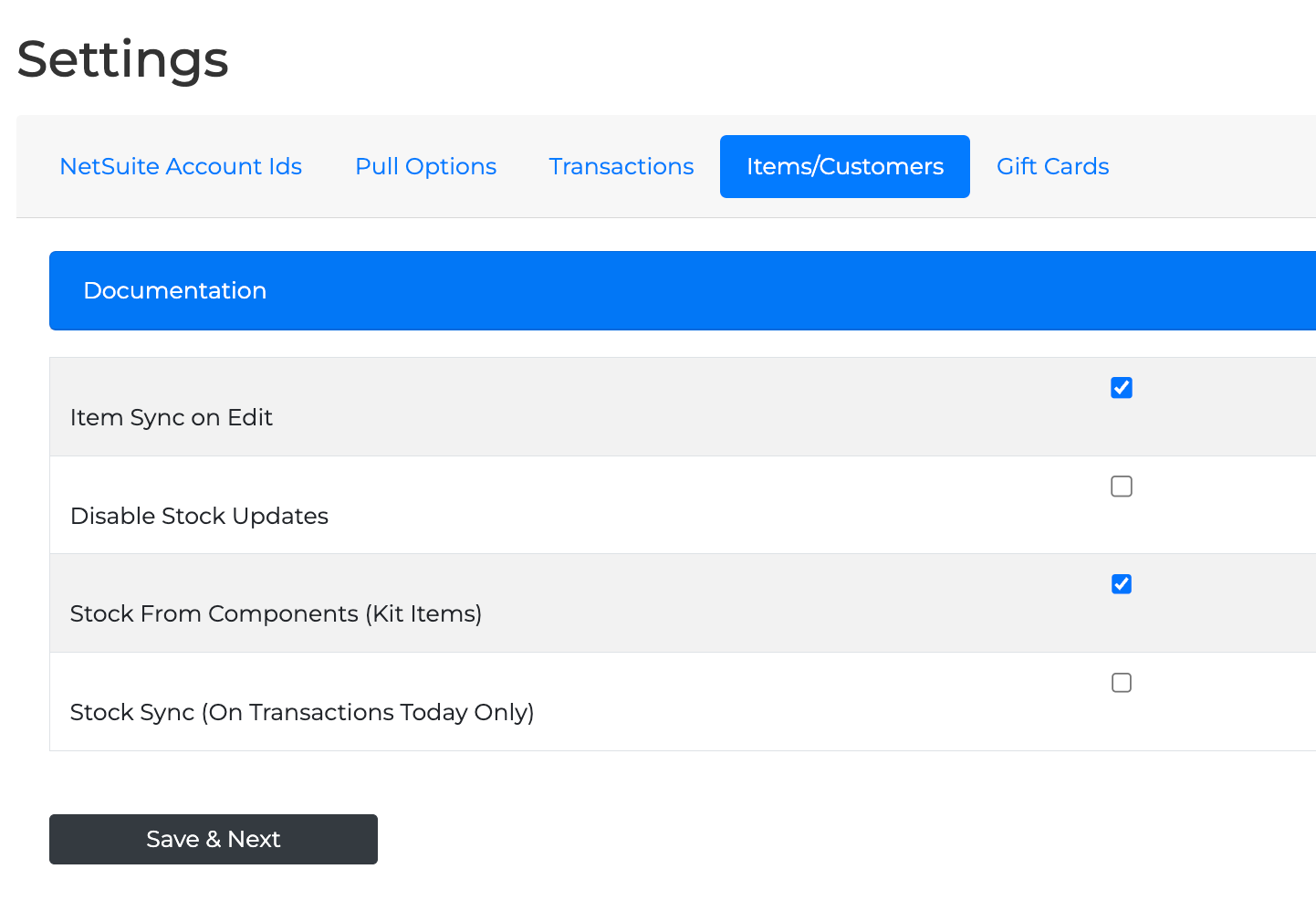
Item Sync On Edit
If enabled, when an Item is edited in NetSuite, the Item will also be updated in Vend.
Disable Stock Updates
If enabled, Stock will NOT be updated in Vend when an Item is synced.
Stock From Components (Kit Items)
If enabled, the Stock of a Kit Item will be calculated from the Stock of the Components.
Stock Sync (On Transactions Today Only)
If enabled, the system will only sync Items that have any transactions modified day-of (“today”).
Gift Cards
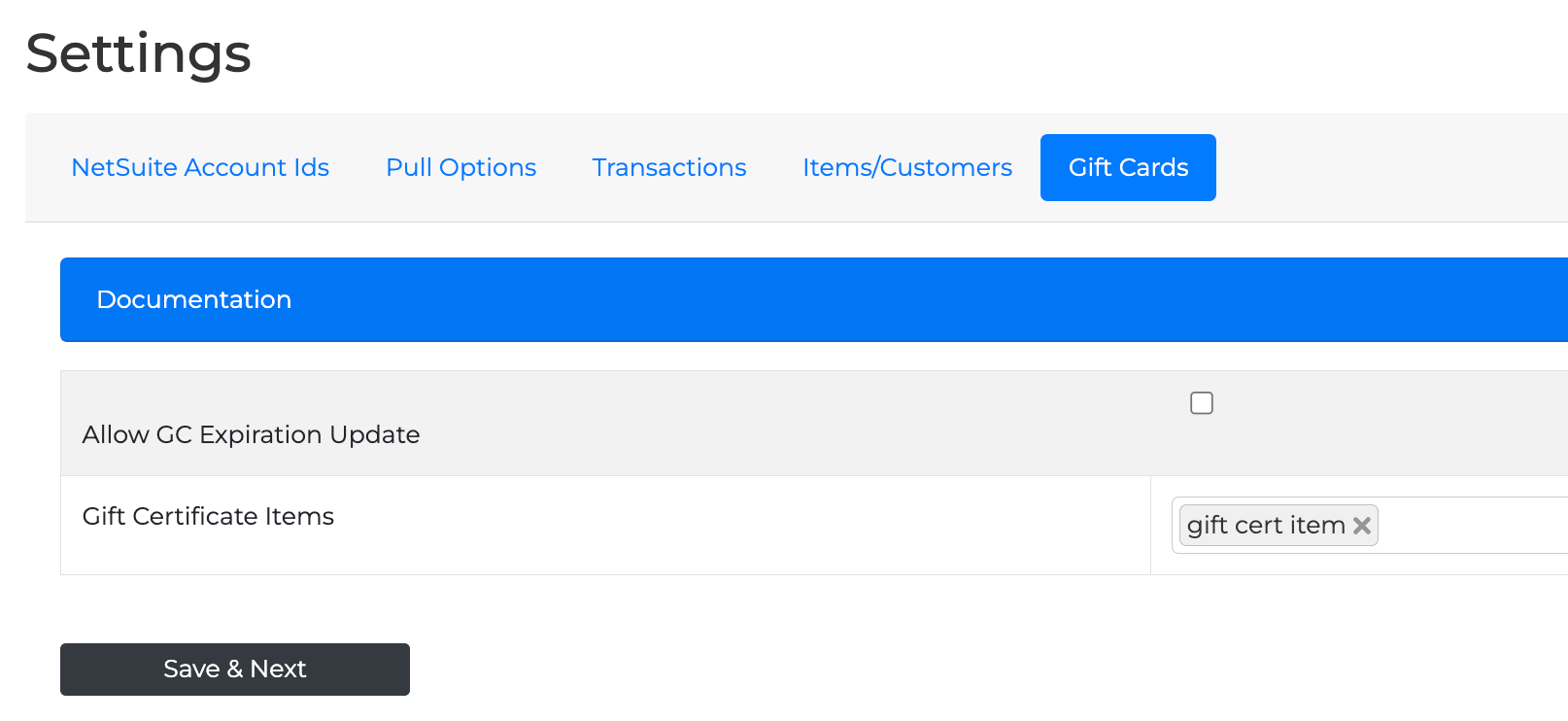
Allow GC Expiration Update
When enabled, if a Lightspeed Gift Card to be redeemed on an order is expired in NetSuite, the sync will automatically update the Gift Certificate expiration to the next day, in order to allow that order to sync into NetSuite.
Gift Certificate Items
Listing at least 1 Gift Certificate Item automatically enables this setting. When the chosen Gift Certificate/Card is used on orders, the created Gift Certificate codes will be synced to Lightspeed X-Series, so that they may be used in Lightspeed as well.
(Please note: NetSuite-generated Gift Certificates automatically send an email with the code details to the listed Gift Certificate recipient. If the Sales Order Transaction Record is configured to send email, it may also send code details to the designated recipient via that avenue.)
Setup Wizard: Items setup
This section will describe each setup step in the Items portion of the Lightspeed X-Series DirectConnect (Legacy) Setup Wizard.
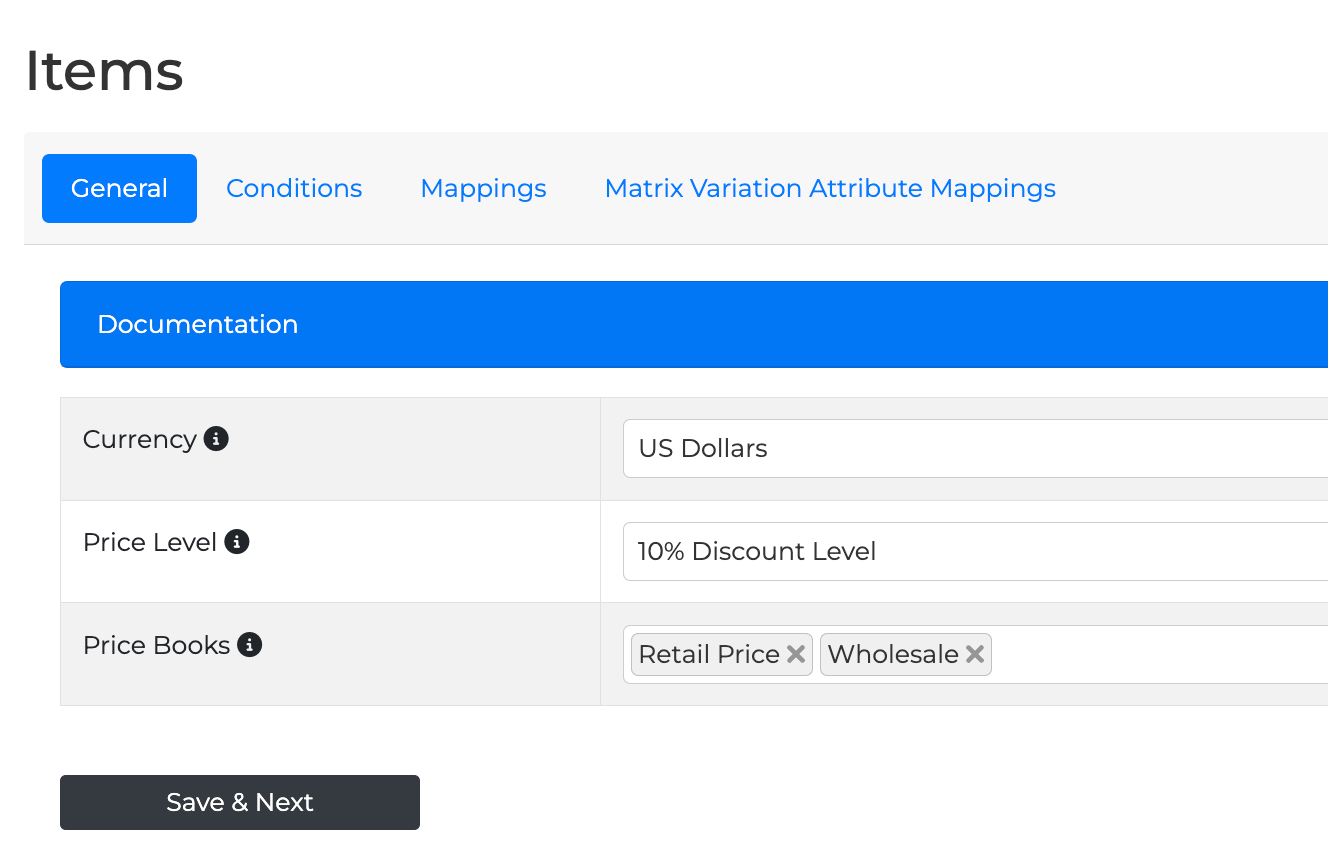
General
Required:
Please list your preferred Currency Level and Price Level. These will be sent to Lightspeed in order to correctly list and price the Items.
If your Lightspeed X-Series to NetSuite installation noted ‘Price Includes Tax,’ please make sure the specified Price Level is an inclusive amount which includes the Price AND Tax.
Optional:
Price Books denotes any additional Price Levels on the Items, such as Wholesale Pricing or irregular QTY Pricing. This space may be left blank if not applicable.
Price Books involves additional Advanced Setup that may require Settings and/or Customer Groups. Please reach out to In8Sync Support for assistance at the following link: https://in8sync.com > Log In > open support cases, per your account. If you do not currently have an established account, you may reach out to accounting@in8sync.com or sales@in8sync.com.
Conditions
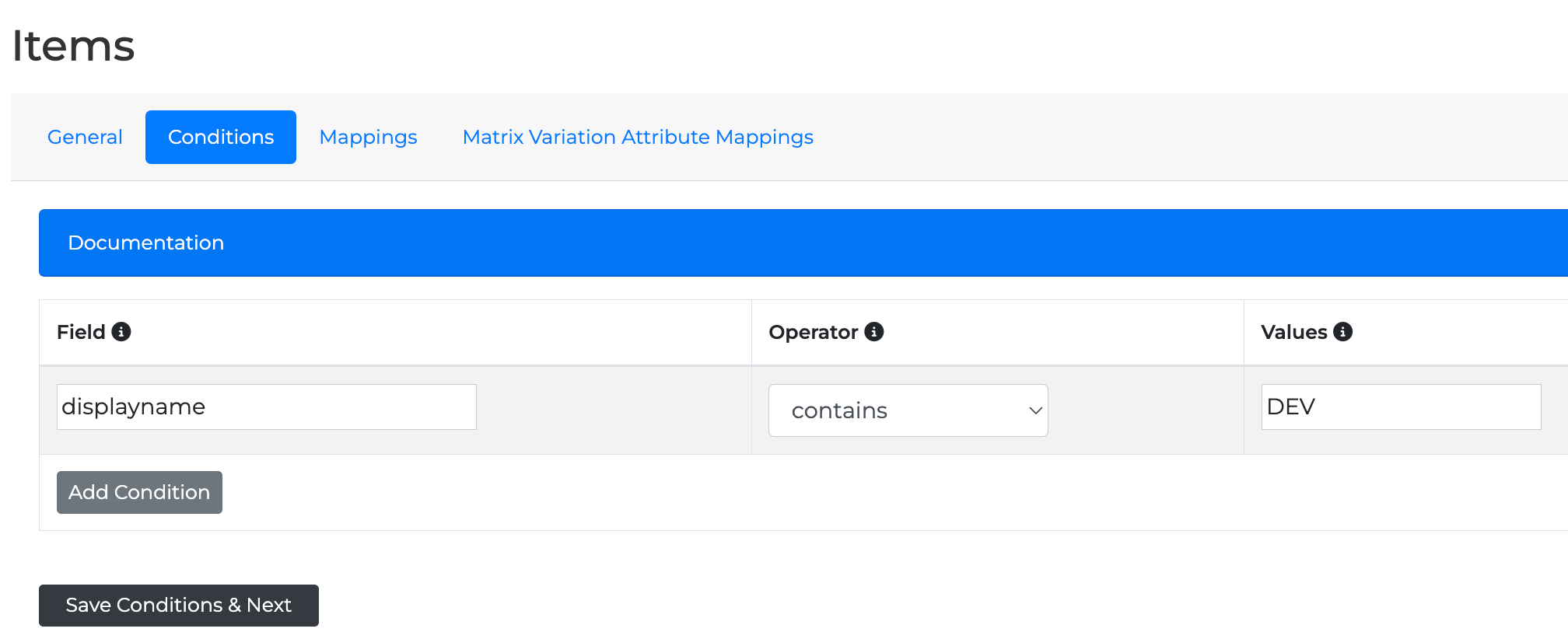
Please list the Condition that is required for an item to pass through the Flow to Lightspeed X-Series.
By default, this Setting uses the checkbox "Sync To Lightspeed X-Series"; Field ID "custitem_in8_sync_vend".
This Setting can be changed to a new Custom Item Checkbox if needed. Customizing this checkbox will also update the Condition Mapping NetSuite Field with the New Internal Field ID.
Mappings
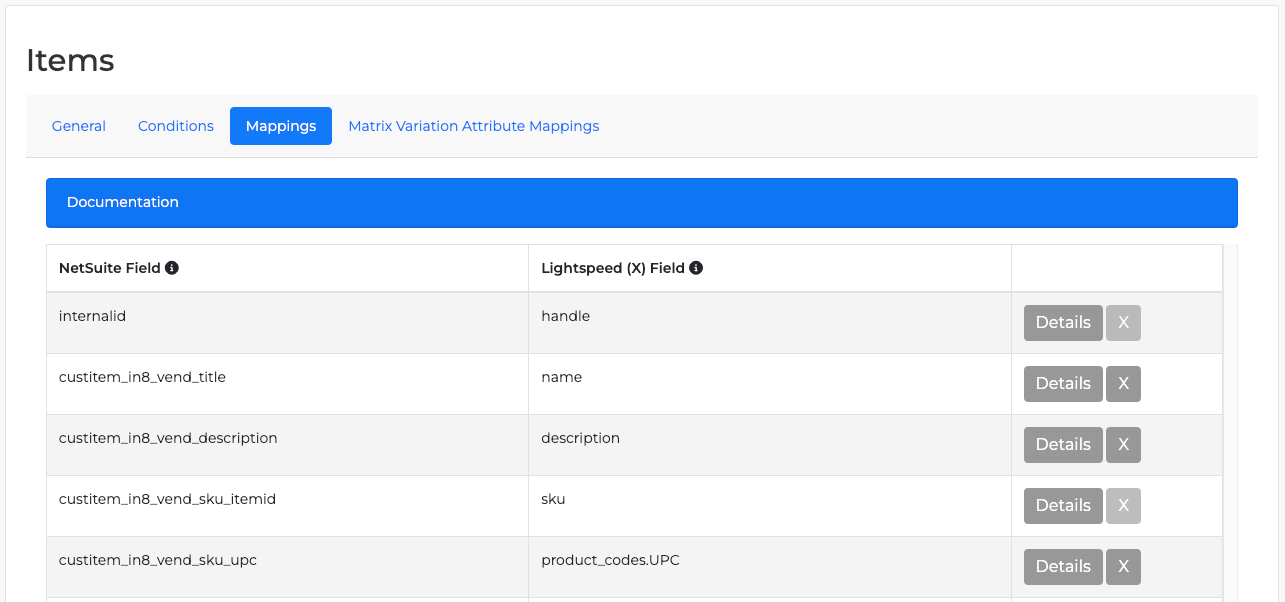
The Following Mappings are defaulted to use Custom Fields that were installed with the Lightspeed X-Series to NetSuite Product Bundle, thus avoiding the need to manually enter data to those Fields.
The Source NetSuite Field IDs listed for the Source information to use on Item Records may be changed to the appropriate NetSuite Item Field ID if the source information field is different from the Custom Fields installed with the Product Bundle.
Required Fields in Lightspeed X-Series:
The following fields are required per the Lightspeed X-Series API:
Handle (this cannot be changed)
Name (title)
SKU
Retail_Price (listed in General Tab with Currency)
Optional Fields:
The following fields may be removed or added whenever needed:
Lightspeed Field
Description
Tags - separate multiple tags with commas
brand_name - Text or List Record
supplier_name - Text or List Record (required if doing Purchase Order Sync)
supplier_code - Text or List Record (required if doing Purchase Order Sync)
supply_price - Text or List Record (required if doing Purchase Order Sync)
Type - Text or List Record
Tax - must match the name of the tax group in Lightspeed
Matrix Variation Attribute Mappings
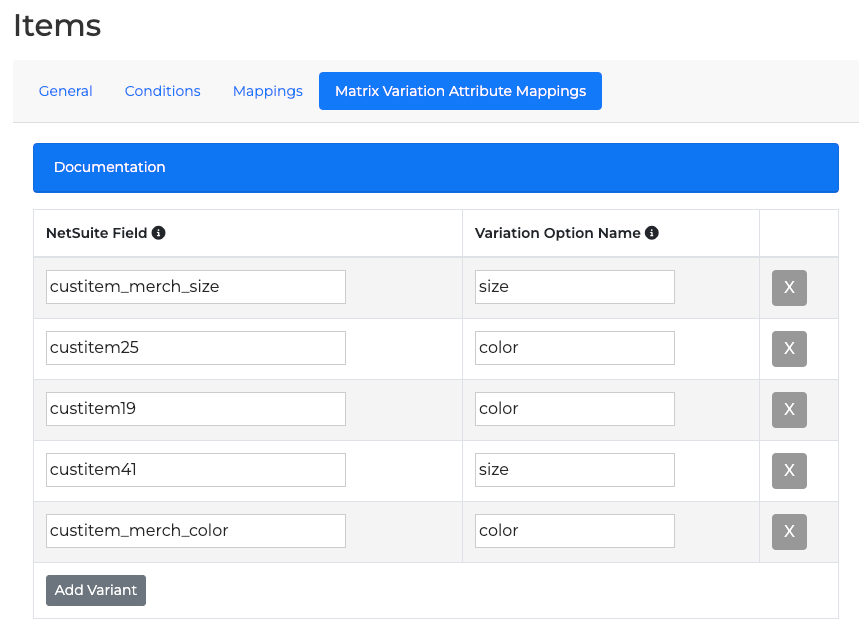
If syncing Matrix Items, all Matrix Option/Attribute Fields on Item records in NetSuite must be mapped by the following:
NetSuite Field ID > Lightspeed Option/Attribute name (the name of the Option as it should be seen in Lightspeed X-Series).
Setup Wizard: Customers setup
This section will describe each setup step in the Customers portion of the Lightspeed X-Series to NetSuite DirectConnect (Legacy) Setup Wizard.
Customer
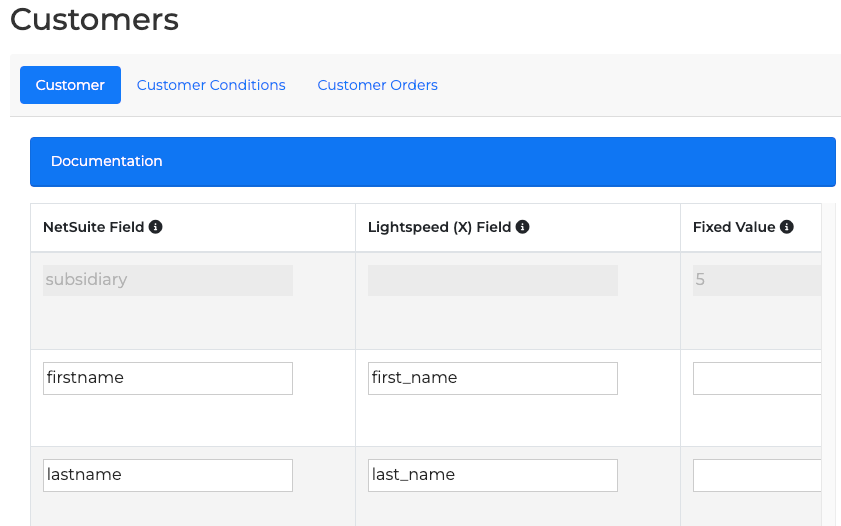
Customer Mapping allows you to map additional fields to be set as needed. This parameter is used for Customer ONLY Updates/Creates.
NetSuite to Lightspeed (Appropriate Conditions should be set to qualify which customers in NetSuite may sync to Lightspeed.)
Lightspeed to NetSuite (when ‘Pull Customer Setting’ is enabled)
Automatic Defaults
If Customer Type has not been added to Mapping to default to a specific Type for all customers and Lightspeed Customer includes a Company Name, the system will create the account as a Company in NetSuite and prompt for a Company Name. (Required)
If Customer Type has not been added to Mapping to default to a specific Type for all customers and Lightspeed Customer does NOT include a Company Name, the system will create the account as an Individual in NetSuite and prompt for a First and Last Name. (Required)
Subsidiary
Email
Phone (within 7-21 digits)
Addresses
Customer Conditions
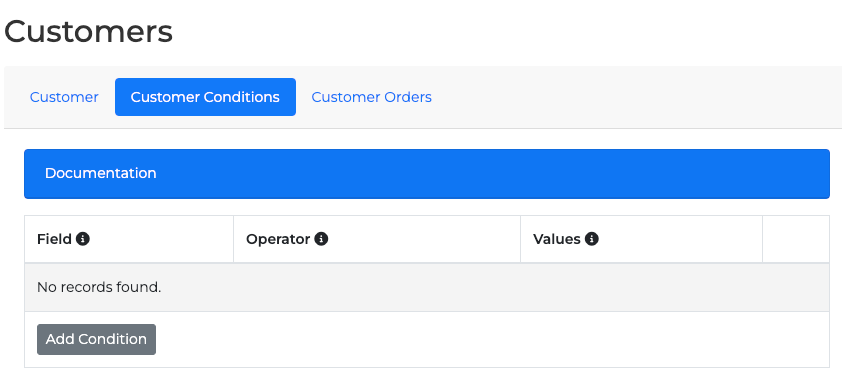
Customer Conditions are for the Customer Parameter only, in order to set conditions for which customers may sync to Lightspeed.
Customer Orders
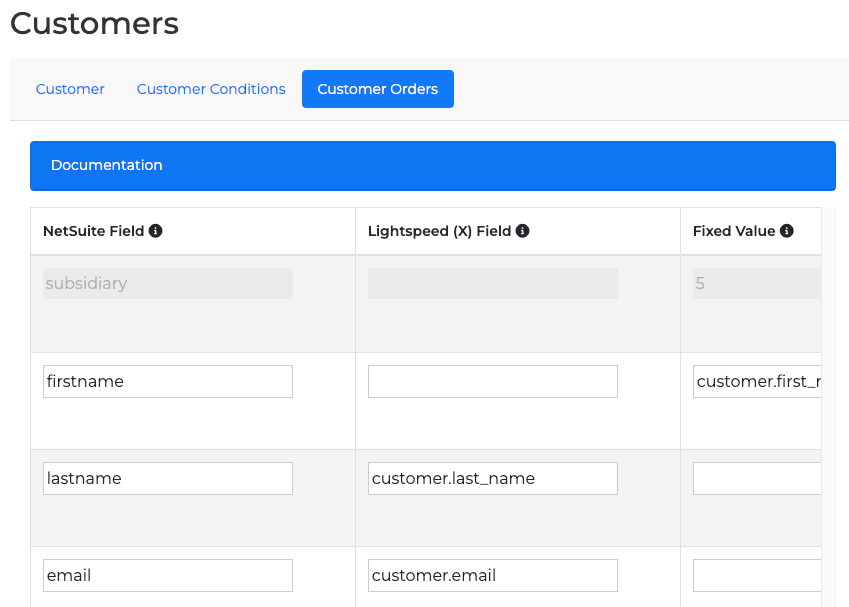
Customer Mapping allows you to map additional Fields to be set as needed.
The Customer Order Parameter is used whenever the Customer is updated during a Transaction.
Lightspeed Field IDs that are mapped should be prefaced with "customer."
For Lightspeed to NetSuite syncs, when a Customer is pulled in during a Transaction, the system cross-checks existing Customers in NetSuite per the following:
1st check: Lightspeed ID match
If match found, that customer is used for the Update or Transaction and the ID is added into the Lightspeed X-Series Customer IDs list
If match is not found with Lightspeed ID, 2nd check is performed for matching Email & Subsidiary
(Please Note: If ‘Multiple Subsidiary Customer’ Setting is enabled, the system will check only by Email.)
If Email and/or Subsidiary is found, that customer is used for the Update or Transaction and the Lightspeed X-Series Customer ID is updated.
If no Customer is found by Lightspeed ID or Email & Subsidiary checks, a New Customer is created.
Defaults that will be set
If Customer Type has not been added to Mapping to default to a specific Type for all customers and Lightspeed Customer includes a Company Name, the system will create the account as a Company in NetSuite and prompt for a Company Name. (Required)
If Customer Type has not been added to Mapping to default to a specific Type for all customers and Lightspeed Customer does NOT include a Company Name, the system will create the account as an Individual in NetSuite and prompt for a First and Last Name. (Required)
Subsidiary
Email
Phone (within 7-21 digits)
Addresses
Setup Wizard: Transactions setup
This section will describe each setup step in the Transactions portion of the Lightspeed X-Series to NetSuite DirectConnect (Legacy) Setup Wizard.
Sales Order
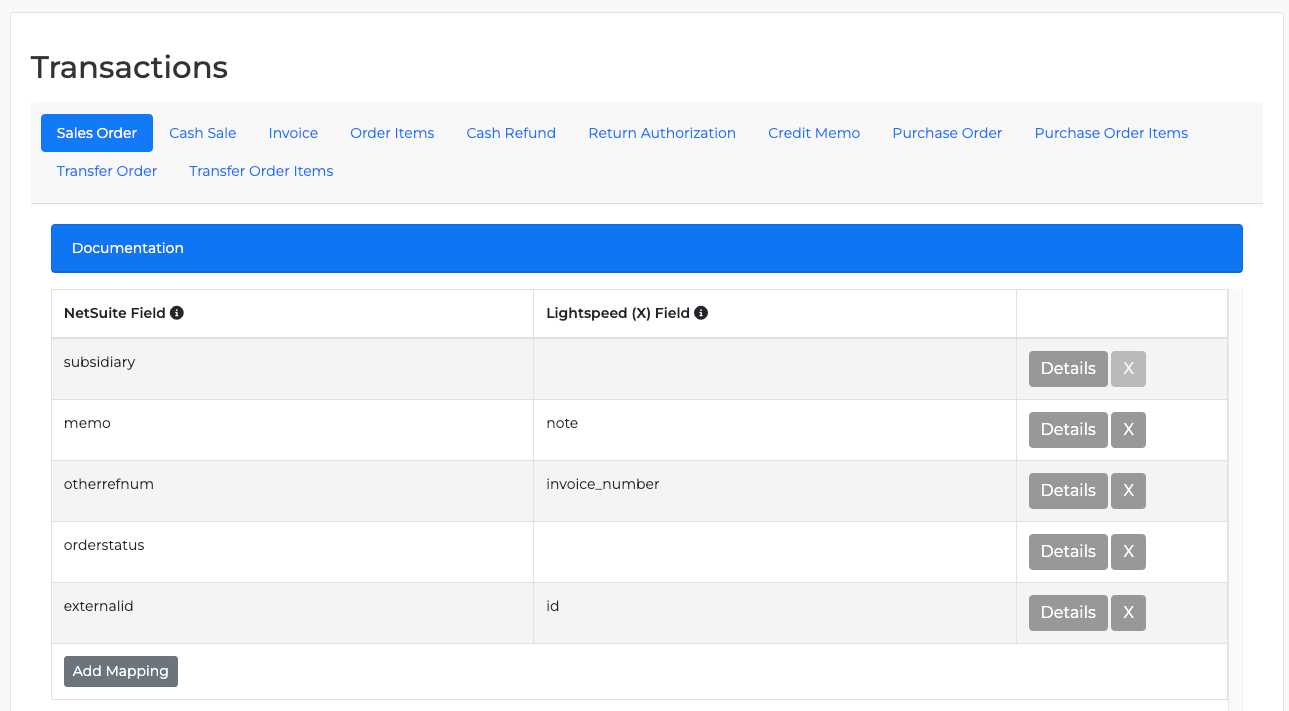
Sales Orders are only created when the Skip Sales Order Setting is disabled or during the following conditions:
Kits with Components that include Serial, Lot, or Bin Items
Delivery Unfulfilled
Pickup Unfulfilled
Layby
Outside of defaults, additional Mappings to Transaction fields and records (Sales Channel, Sales Rep, Department, Class, etc.) may be created for Transactions as needed. These are typically mapped with NetSuite Fields and Fixed Values (after setting internal ID values).
Sales Order Transactions Defaults include:
Customer
Subsidiary (On World NetSuite)
Note -> Memo
Lightspeed Order Number (invoice_number) or PO#
External ID
Items
Cost
Discounts (Header)
Addresses
Location
Lightspeed Specifics under Lightspeed X-Series subtab
Cash Sale/Invoice
Outside of defaults, additional Mappings to Transaction fields and records (Sales Channel, Sales Rep, Department, Class, etc.) may be created for Cash Sales/Invoices as needed. These are typically mapped with NetSuite Fields and Fixed Values (after setting internal ID values).
Cash Sale/Invoice Transactions Defaults are:
Customer
Subsidiary (On World NetSuite)
Note -> Memo
Lightspeed Order Number (invoice_number) or PO#
External ID
Items
Cost
Discounts (Header)
Addresses
Location
Lightspeed Specifics under Lightspeed X-Series subtab
Order Items
Order Items Mappings help to set additional Line Level Field Values.
Typically, there is little need to map additional Line Levels, but this can be managed with NetSuite Field and Fixed Value (after setting internal values such as Department, Class, Sales Channel, etc.) as needed.
Order Items Transactions Defaults are:
Items
Cost
Discounts (Line)
Location (as needed)
Cash Refund/Return Authorization/Credit Memo
Full Return Authorizations are usually created where Cash Refunds can be handled (except for Simple Refunds). This is also used when the Return includes a Kit Item with Component with Serial, Lot, or Bin Items.
Setup Wizard: Payments setup
This section will describe each setup step in the Payments portion of the Lightspeed X-Series to NetSuite DirectConnect (Legacy) Setup Wizard.
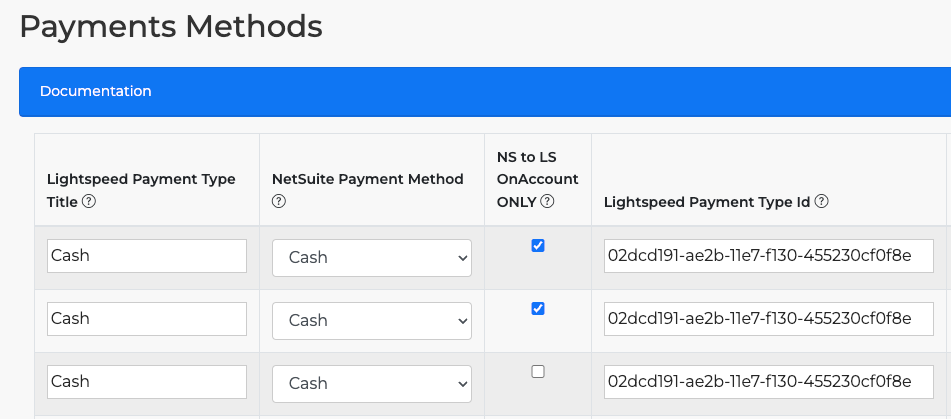
Payment Mappings help to determine when a Payment tender must be set and whether a Cash Sale (single payment) or Invoice (multiple payments) should be generated for the Transaction.
Only Lightspeed Payment Types by Name that are created in Lightspeed should be mapped. (case sensitive)
(Please Note: Do not map Store Credit, On Account, or Lightspeed internal Gift Cards to the Payment Mappings, as they are not technically Lightspeed Payment Types and are handled via other fund applying processes.)
The following fields must be completed to create Payment Methods in Lightspeed X-Series to NetSuite:
Lightspeed Payment Type Name
Enter the Lightspeed's Payment Type Name EXACTLY as written (case sensitive). i.e. Cash, Credit Card, etc.
NetSuite Payment Method
Select the NetSuite Payment Method to be used based on the Lightspeed Payment Type seen in Transactions.
NS to LS On Account Only
Check this box if you plan to pay ‘ONACCOUNT’ Orders within NetSuite. Separate Mappings for the NetSuite Payment Methods used to pay ONACCOUNT Orders in NetSuite (Credit Memo, Customer Deposit or Customer Payments) must be created.
Do NOT check this box if using Payment Mappings for Lightspeed to NetSuite Transactions.
Credit Memos will always be set as ‘Cash’ on Lightspeed. NetSuite Customer Payment and Customer Deposits will require a Payment Method listed on the Record.
All Payment Mappings with this Field marked 'F' are used for setting NetSuite Payment Methods as needed when Transactions are processed from Lightspeed to NetSuite.
All Payment Mappings with this Field marked 'T' are ONLY used for NetSuite to Lightspeed ONACCOUNT Payments in order to update Lightspeed. This requires the "Lightspeed (X) Payment ID" to be listed. This can be found in the Payment Type URL, while in Lightspeed EDIT Mode.
Lightspeed Payment Type ID
Use this field to set a Payment Type when syncing Orders (Sales Orders Only) from NetSuite to Vend. It is also used for ‘ONACCOUNT’ Payments from NetSuite to Lightspeed when ONACCOUNT NetSuite orders are Paid in NetSuite.
Use the UUID for this Setting, which will look something like this: 0281490b-76ed-11eb-fdc3-a83d20a5ca18
The UUID is also found in the Payment Type URL, while in Lightspeed EDIT Mode.
NetSuite Payment Setting
Select the appropriate Site Setting from NetSuite for Transactions that utilize this mapping.
Setup Wizard: Locations setup
This section will describe each setup step in the Locations portion of the Lightspeed X-Series to NetSuite DirectConnect (Legacy) Setup Wizard.
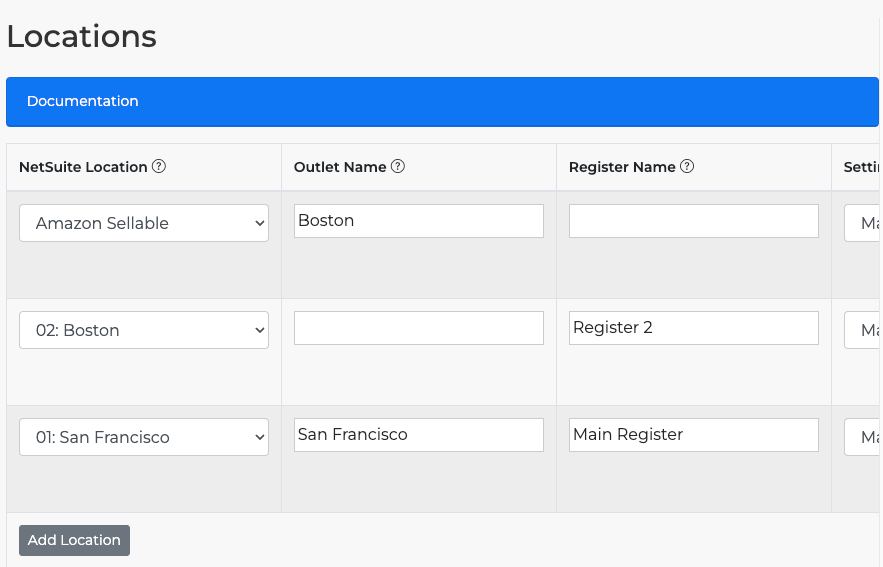
These Mappings are multi-functional and are used in the following situations:
When Stock Sync occurs from NetSuite to Lightspeed, the NetSuite Location to the Outlet ID is used to determine Quantity Available. This allows Items to update to the Outlet in Lightspeed, listed by outlet ID.
When Transactions are ported from Lightspeed to NetSuite, the Register ID of the NetSuite location is used to create the Transaction Location.
The Outlet Address with the Register ID is noted to help NetSuite determine the appropriate Tax Code on the Transaction.
When there are Multiple Registers per outlet, the ‘Duplicate’ button to the right of an existing mapping can be used for speedier register creation. Simply update the Register Name and ID for the new Register once duplicated.
(Please Note: it is recommended that you edit the Registers and install a Prefix to each Register Invoice order number in Lightspeed. This can be performed under Setup > Outlets and Registers > Edit Register > enter prefix. This allows for easier Lightspeed Transaction searching in both NetSuite and Lightspeed.)
NetSuite Location
Let’s set up a new location and its necessary components. First, enter the NetSuite location for the Outlet site mapping.
This Location and its Register IDs will be used to set the NetSuite Transactions location whenever a Lightspeed Transaction is found with the Corresponding Register ID.
When ‘Multiple Location’ is NOT Configured to add up multiple NetSuite Locations in regard to Stock updates, this Location will be used to update the Stock Quantity Available (Items) to the Lightspeed Outlet.
Outlet Name
Enter the Lightspeed Outlet name for reference.
Outlet Id
Enter the Outlet ID. Outlet ID is needed for certain dataflows, such as NetSuite Stock Updates to Lightspeed Stock Level. In the Lightspeed Stock Update dataflow, source/target Outlet IDs must be specified. The Outlet Id can be found in the Payment Type URL while in Lightspeed EDIT Mode.
Register Name
Enter the Lightspeed Register name for reference.
Register Id
This field stores the Lightspeed Register ID. Register ID is needed for certain dataflows, primarily to note the NetSuite Location to be set on NetSuite Transactions. The Register ID can also be found in the Payment Type URL while in Lightspeed EDIT Mode.
Location Setting
Enter the Location Setting for the Lightspeed Site this belongs with.
Outlet Address
Enter the Address Fields for the Outlet. This allows NetSuite to determine the proper Tax Codes to set on Transactions. For the Address Country Field, the standard Country Code is needed, i.e. US, CA, AU, UK, etc.
Multi Locations
When configured, you may use this option to Sum and update the total Quantity Available (across multiple locations) to the Lightspeed Outlet when syncing Stock.
Application Interface
While on your NetSuite home page, visit the IDC menu > Management Tools > Dashboard.
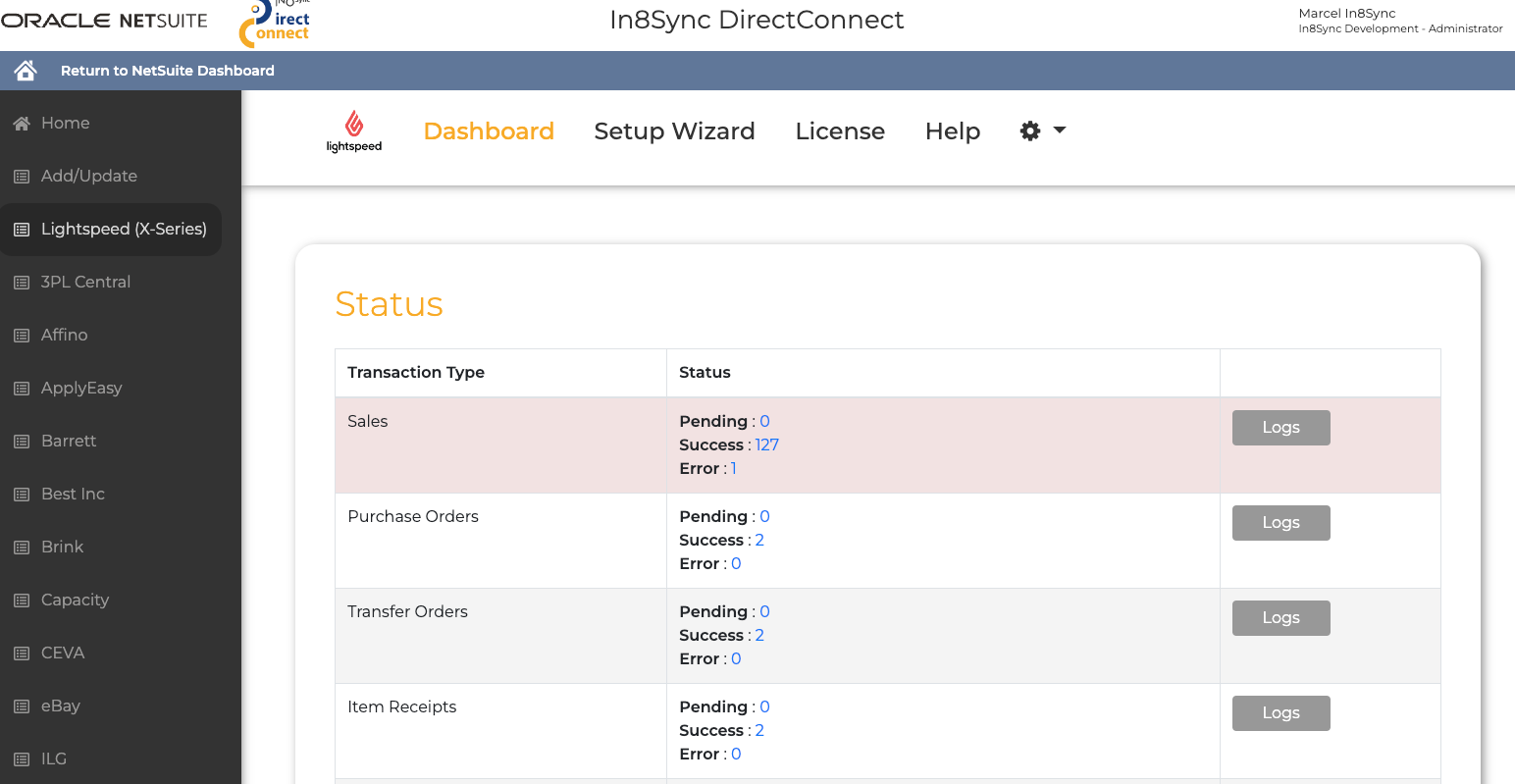
On the dashboard, find the app “Lightspeed (X-Series)” on the left vertical menu and click on the link to go to the LightSpeed X-Series to NetSuite IDC Dashboard.
The application dashboard displays the status of various flows, allowing you to easily track their progress. Additionally, by clicking on the 'Logs' button, you can manage the logs and address any errors that may have occurred.
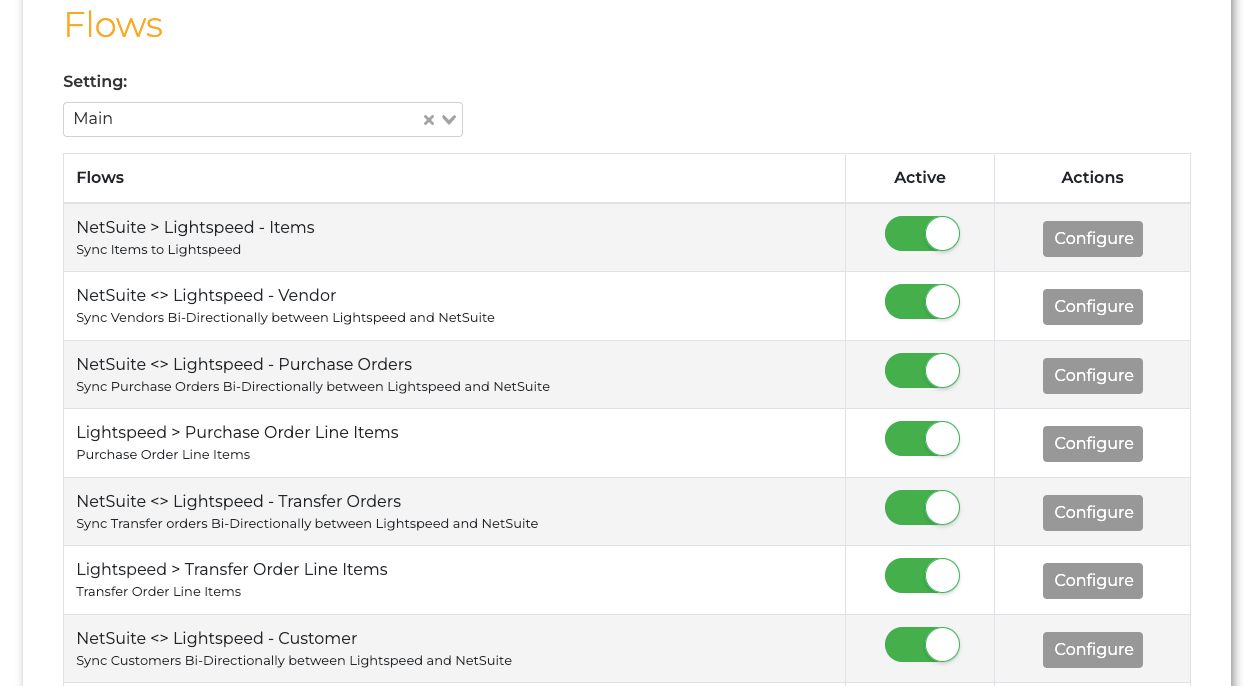
Below the list of statuses, you have the ability to manage the different flows and enable or disable them as needed.
Managing Flows
The Application dashboard lists the available flows. Click the ‘Active’ slider on the appropriate rows to activate the flows that will be used for the integration.
For Import processes, active scripts check if the flow is active and pull the data from Lightspeed.
For Export processes, active scripts sync the record to Lightspeed whenever it is saved.
By default, these scripts are scheduled to run every 15 minutes. If you would like to trigger the script to run immediately, visit the ‘Tools’ page by clicking on the gear button in the top-right portion of the dashboard’s navigation bar and click on ‘Tools.’
Tools
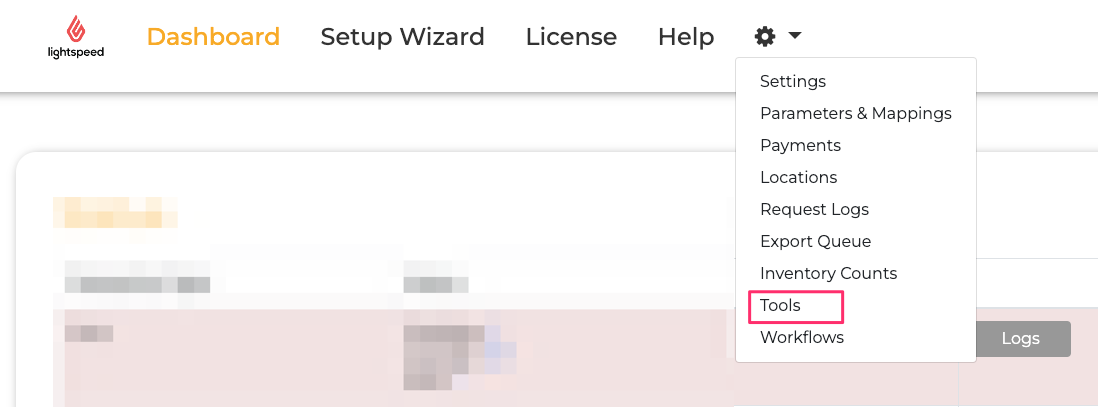
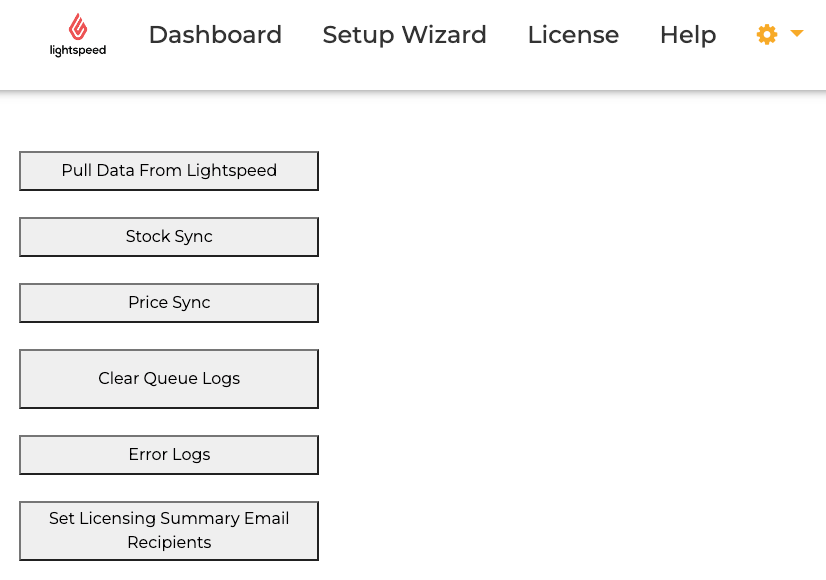
On the Tools page, you may access the following processes:
Pull Data from Lightspeed: This button allows you to initiate the Puller Script to Pull orders from Vend, before its next automatic 15-minute interval. This is mainly used for testing or when an immediate data update is desired.
Stock Sync: This allows you to manage your preferred Stock Sync configurations.
Price Sync: This opens the script that syncs pricing information from NetSuite to Lightspeed.
Clear Queue Logs: This clears old logs - freeing up space in NetSuite - by deleting payloads pulled from Lightspeed.
Error Logs: This script sends email notifications containing a list of any recent log errors.
See Licensing Summary Email Recipients: This allows users to enter email addresses that can receive an email with product license information.
Logs
Once the flows have been enabled and are running, you may view the logs.
To access data logs that contain information synced from Lightspeed to NetSuite, navigate to the application dashboard and locate the status list. Click on the 'Logs' button to view all the records retrieved from Lightspeed, including their current status.
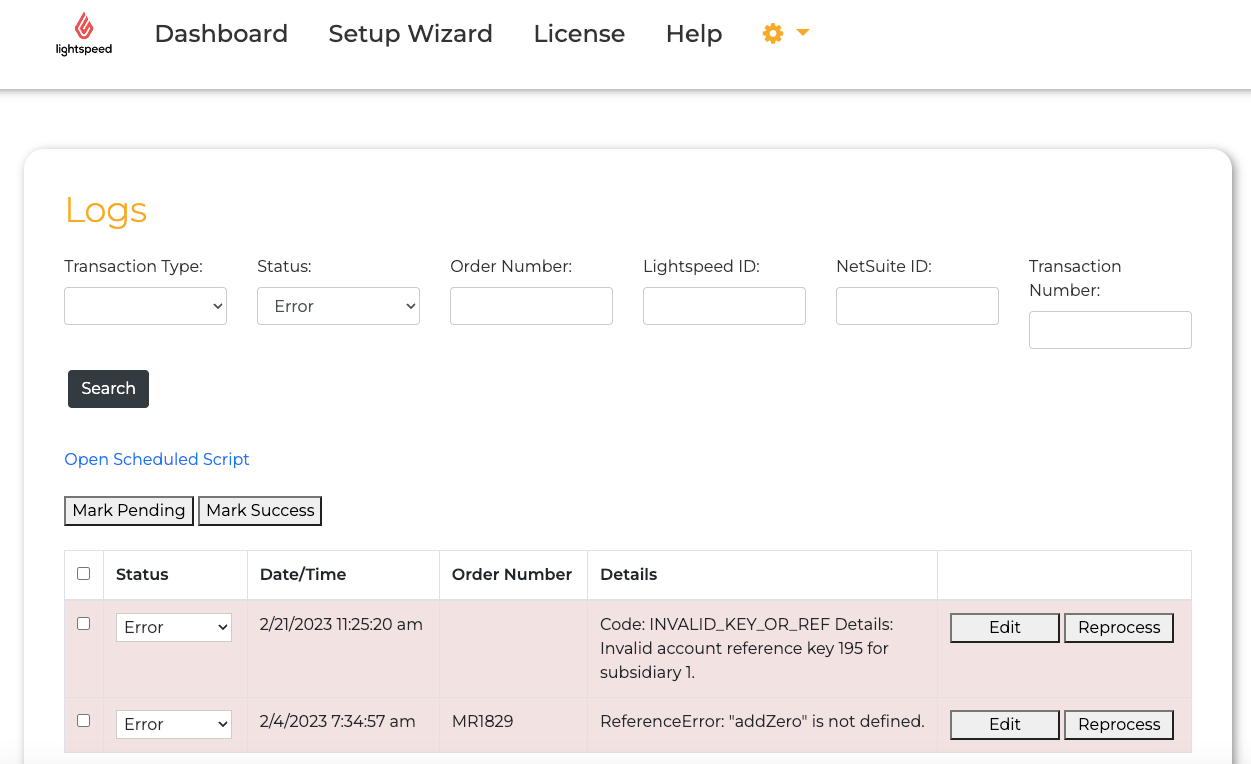
Enter the filters (Transaction Type, Status, Order Number, etc.) and click on the ‘Search’ button.
If there are any errors in the search results, they will be highlighted. You can access more details by clicking on the ‘Edit’ button. If the error is related to data, you may modify the payload content and click on the ‘Reprocess’ button to see if the issue has been corrected.
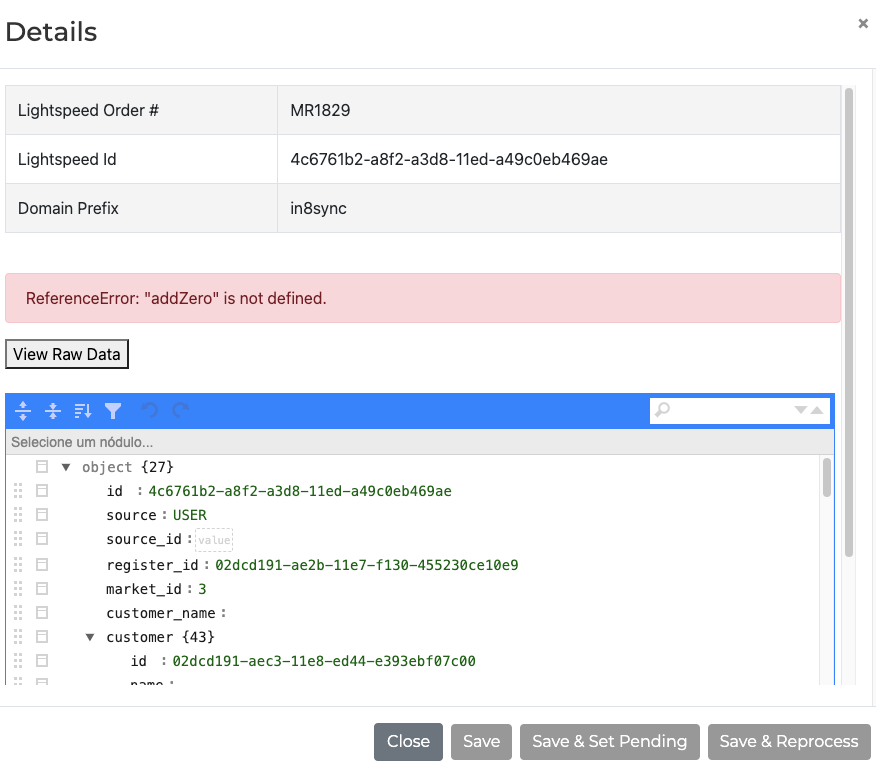
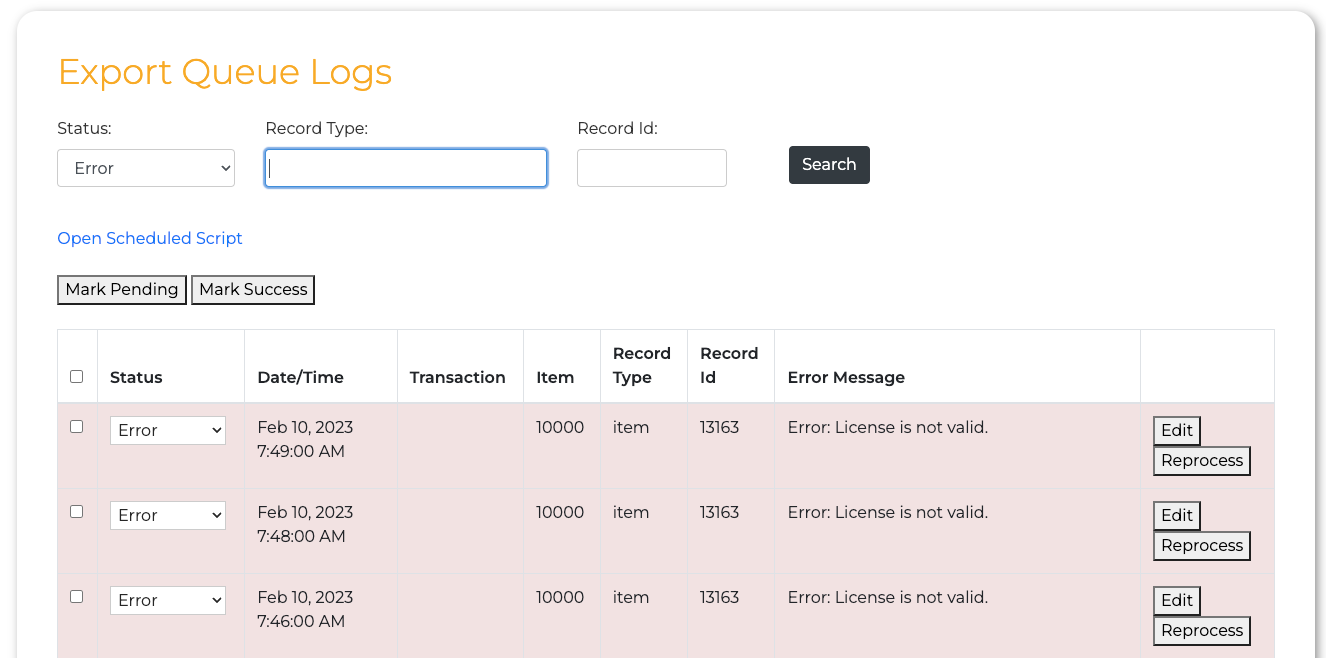
To view the logs for NetSuite to Lightspeed exports, navigate to the Export Queue page under Settings.
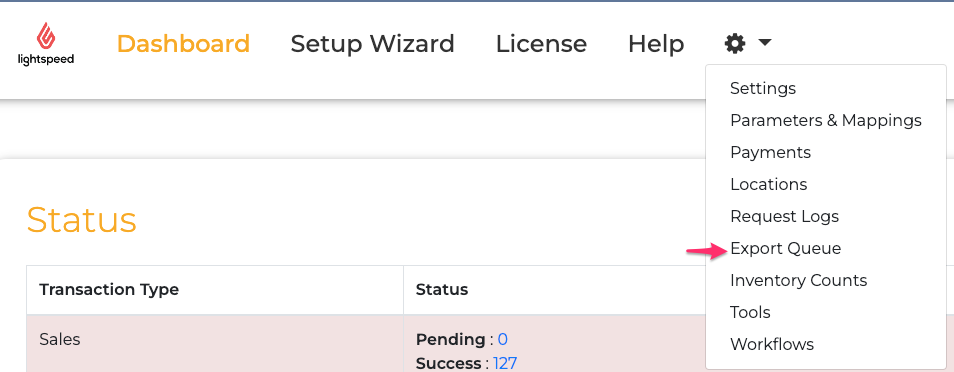
The list on the Export Queue page displays various points of information, such as NetSuite Record Type, Record ID, and Error Message. Additionally, it allows you to update the status of the log record.
Support
Before filing a Support Case or contacting our Support Team, please take a moment to review the troubleshooting guide below or refer to other articles in our FAQ database.
Troubleshooting Guide
S05. Lightspeed X-Series (Legacy) Troubleshooting
Frequently Asked Questions
Lightspeed X-Series - Frequently Asked Questions
Product Videos
[Add link this product’s videos here]
Contacting Support
If you cannot find the answer to your issue in the above, or have other support-related issues, please contact our Support Team via one of the avenues below.
Contacting Support
Open a Support Case HERE
Or Contact In8Sync Support at:
+1 (888) 604- 4120 Ext. 3
©Copyright 2024 In8Sync, LLC | All Rights Reserved
Document Version: V.1
Author: Austin Raishbrook.
Last Updated: March 18, 2024 by Aztec Centeno
Update Verified By: