Lightspeed X-Series - Settings User Guide
Table of Contents
Lightspeed X-Series to NetSuite (Legacy) Settings
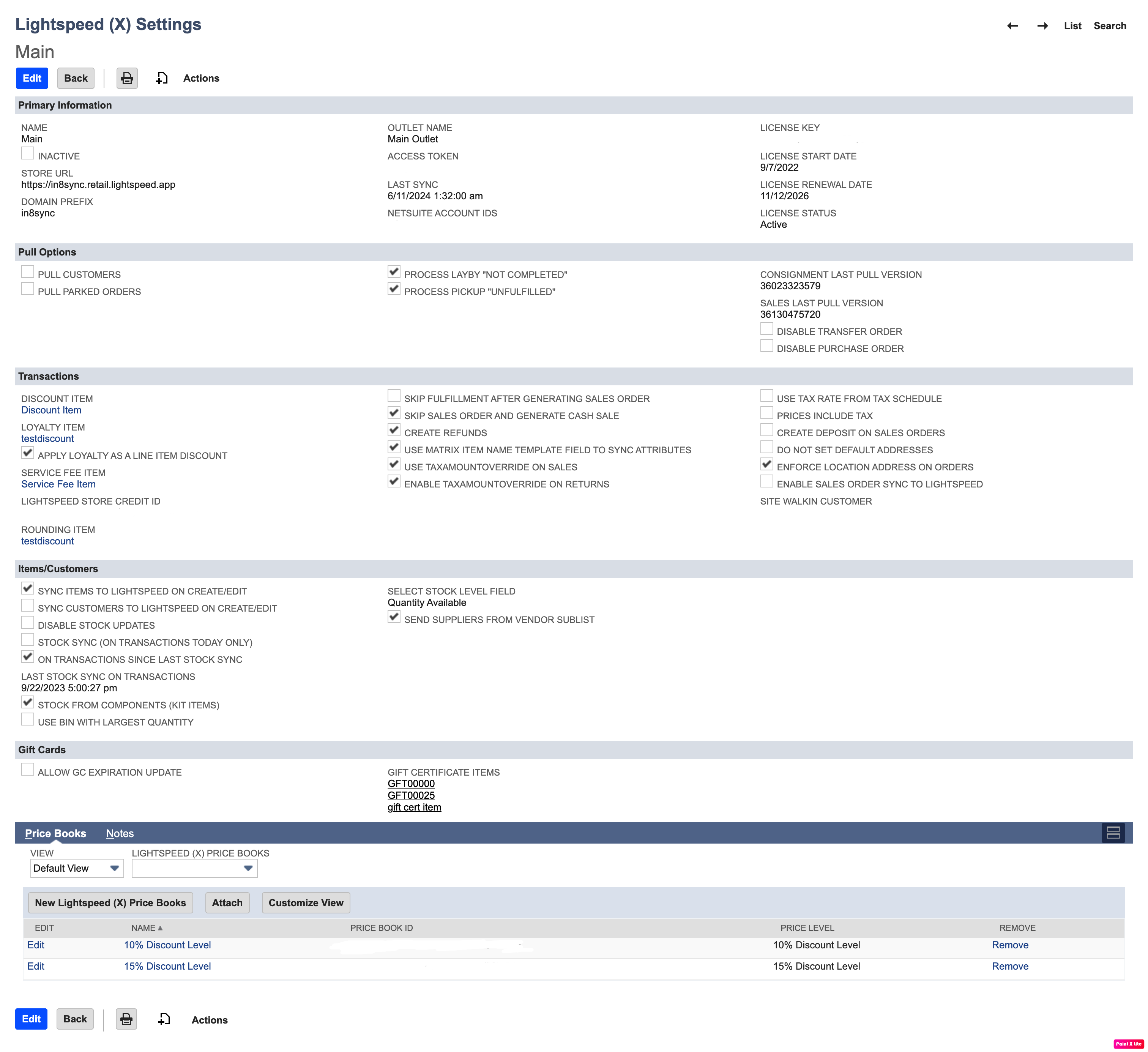
To begin working with the Lightspeed to NetSuite X-Series DirectConnect bundle, you will need to modify your preferred settings. The Fields setup on this page will affect how your entities and orders are created in your NetSuite Instance. This section contains many of the configuration options needed to establish connection to your Lightspeed X-Series.
If you have more than one Instance for Lightspeed X-Series, a Lightspeed X-Series Setting must be configured for each Instance in the Lightspeed X-Series Settings List. By default, there is one automatically created for you to update with the correct settings for the first Instance.
(Please Note: Duplication and new Mappings and Parameters for each setting must also be created.)

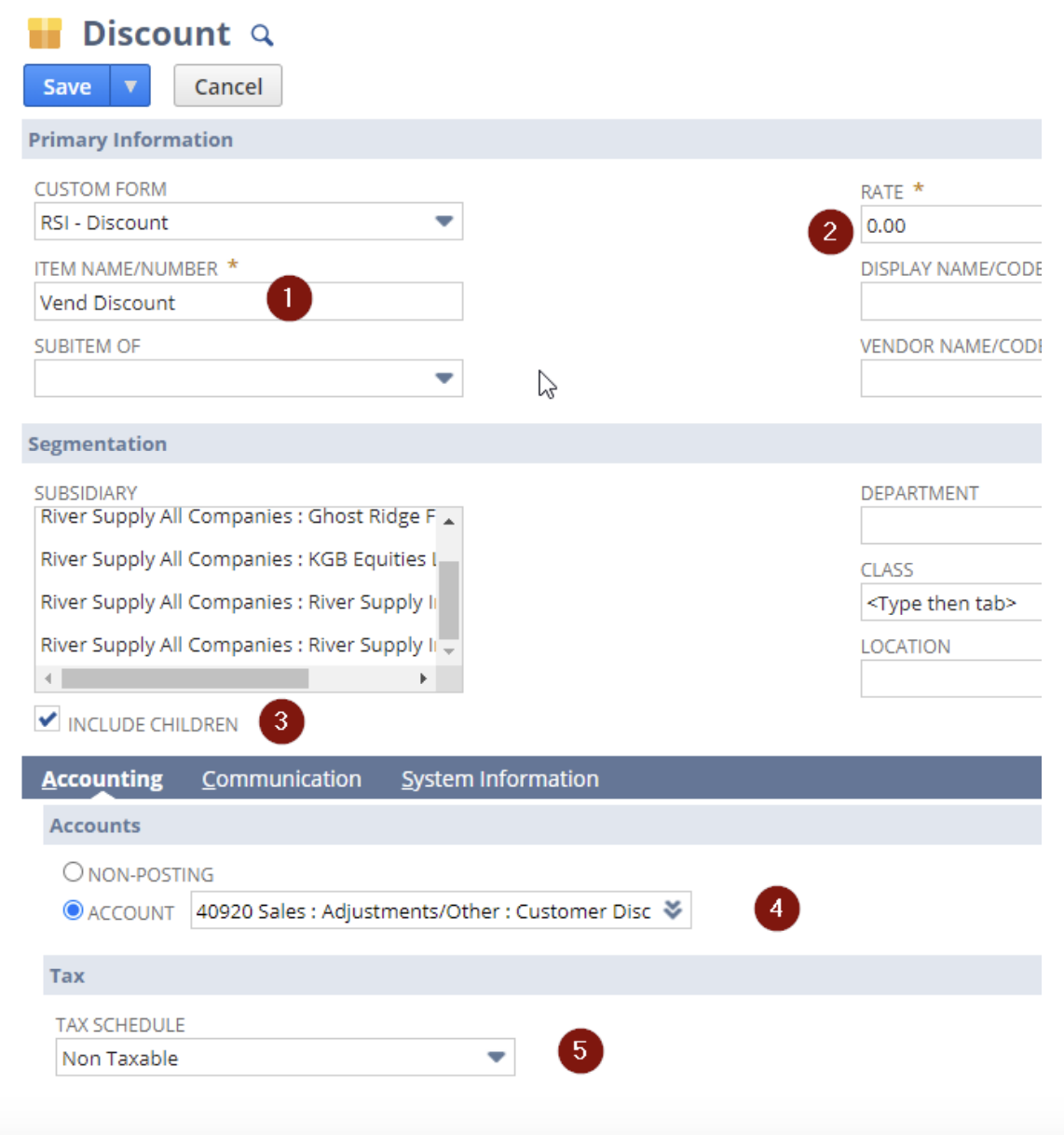
Before Settings configuration, it is recommended that users first create and configure a ‘Generic Discount Item’ in NetSuite. This will connect with the Lightspeed X-Series Discount Item for use in Lightspeed X-Series. The same Discount Item can be used on multiple settings if the Discount item is set for the Subsidiary that each site and mappings use.
When used to discount the entire order, it will be listed as a Discount Item & Discount Rate on the overall order (header level).
When used on individual items, the Discount Item will be listed as a Line Item in the NetSuite transaction under each Item it was applied to.
To create a Discount Item, go to Lists > Accounting > Items > New.
- Next, select 'Discount' link.
- Set the following field values:
Name the Discount Item. In this example, it is called “Lightspeed X-Series Discount”.
Rate should be 0.00.
For One World accounts, set parent and include children.
Assign the Sales Account to use.
Set as Non-Taxable, unless there is a specific reason to list it as Taxable. In most instances, Price already includes Tax.
Click 'Save'.
(Please Note: If you plan on utilizing ‘Loyalty’ in Lightspeed X-Series, create a second Discount Item named ‘Loyalty Discount’ using the same steps as above.)
Below are the different fields you may set up in your Lightspeed to NetSuite X-Series Settings and their definitions.
Primary Information
Field Name | Description | Default Value | Notes | |
|---|---|---|---|---|
| 1 | Name | Enter a name for this settings record. | Main | |
| 2 | Inactive | Check this box to remove all references to this record from your account. | No | |
| 3 | Store URL | Enter the Lightspeed X-Series HQ Store URL into the Store URL Field with the format https://<yourdomain>.retail.lightspeed.app, replacing the “yourdomain” with your actual domain: | ||
| 4 | Domain Prefix | Enter the domain prefix only | in8sync | |
| 5 | Outlet Name | Enter the Outlet Name exactly how it is listed in Lightspeed X-Series. By default, the first outlet created in Lightspeed X-Series will be considered the Main Outlet | Main Outlet | |
| 6 | Access Token | Enter the Lightspeed X-Series Access token | ||
| 7 | Last Sync | Time of last successful Sync data pull, UTC time Last Sync field should be left empty by user. This field is used automatically by the bundle when it pulls records from Lightspeed X-Series. | ||
| 8 | Netsuite Account IDs | List the Account IDs that the Lightspeed X-Series Integration may run in while active. If multiple IDs, please separate ID numbers by comma. If this field is left blank, Lightspeed X-Series will run on any account that it is live in. It is recommended that NetSuite Account IDs ARE listed in this field, in order to prevent NetSuite Sandbox and Refresh from attempting to automatically sync to Production Lightspeed X-Series accounts without direct authorization. | ||
| 9 | License Key | Valid In8Sync Subscription License Key Required to be able to save a Lightspeed X-Series Setting otherwise a Validation will occur and setting cannot be saved. License Key Validated Manually or on Edit/Save of any Lightspeed Setting with In8Sync Customer Account Subscriptions | ||
| 10 | License Start Date | The activation date for your Lightspeed to NetSuite X-Series (Legacy) DirectConnect bundle license | ||
| 11 | License Renewal Date | The date that your Lightspeed X-Series (Legacy) DirectConnect bundle is currently set to expire. Lightspeed to NetSuite X-Series integrations will not continue past the expiration date. Please contact In8Sync Support to extend your license. | ||
| 12 | License Status | Current status of your Lightspeed to NetSuite X-Series (Legacy) DirectConnect bundle license |
Pull Options
Field Name | Description | Default Value | Notes | |
|---|---|---|---|---|
| 1 | Pull Customers | When enabled, this Setting will pull ‘Customer Only’ updates from Lightspeed X-Series to NetSuite. If left unchecked, only new customers on order to create will be pulled. | No | |
| 2 | Pull Parked Orders | When enabled, this Setting will pull Unpaid Parked Orders from Lightspeed X-Series. This requires that you complete the order in NetSuite. Once the NetSuite order moves to ‘BILLED’ status, the system will set the Lightspeed X-Series order to ‘COMPLETED.’ | No | |
| 3 | Process Layby "Not Completed" | This sets the Sales Order in NetSuite as ‘UNFULFILLED.' If Partial Payments are listed, the Setting will create Customer Deposits for listed Payments unless the order shows as ‘Missing’ or $0.00. When a ‘Layby_Completed’ order is received, this Setting will verify deposit accuracy and then ‘Fulfill and Bill,' generating an Invoice to allow NetSuite to auto-apply deposits to the Invoice. | No | |
| 4 | Process Pickup "Unfulfilled" | This Setting creates a Sales Order in NetSuite for ‘Pickup Unfulfilled’ orders. If Partial Payments or a Deposit are listed, this Setting will create Customer Deposits for listed Payments unless the order shows as ‘Missing’ or $0.00. When a ‘Picked_Up_Completed’ order is received, this setting will verify deposit accuracy and then ‘Fulfill and Bill,’ generating an Invoice to allow NetSuite to auto-apply deposits to the Invoice. | No | |
| 5 | Consignment Last Pull Version | This Setting is used by the integration to pull consignments from the last pull version without pulling all consignments on your Lightspeed X-Series site. | 1 | |
| 6 | Sales Last Pull Version | Used by the integration to pull orders from this last pull version without pulling all orders on your Lightspeed X-Series site. | ||
| 7 | Disable Transfer Order | If enabled, this Setting will NOT allow pulling of Lightspeed X-Series Transfer Orders into your NetSuite instance. | Yes | |
| 8 | Disable Purchase Order | If enabled, this Setting will NOT allow pulling of Lightspeed X-Series Purchase Orders into your NetSuite instance. | Yes |
Transactions
Field Name | Description | Default Value | Notes | |
|---|---|---|---|---|
| 1 | Discount Item | Enter the Item to be assigned a Header or Line Discount from Lightspeed X-Series to NetSuite Transactions. | ||
| 2 | Loyalty Item | Enter the Item to be used within the Default Lightspeed Loyalty system to list the Redeeming loyalty amount as a Transaction Line. | ||
| 3 | Apply Loyalty as a Line Item Discount | If 'Loyalty' is enabled and used in Lightspeed X-Series, this box should be checked. | Yes | |
| 4 | Service Fee Item | Requires an Other Charge for SALE item that in preferences is marked to not require Fulfillment. | ||
| 5 | Lightspeed Store Credit ID | This Setting is used in the sync process for NetSuite Credit memo to Lightspeed X-Series Store Credit. (Please Note: This field should be left empty by users, as it is generally used only for specific-use configuration cases by In8Sync Support.) | ||
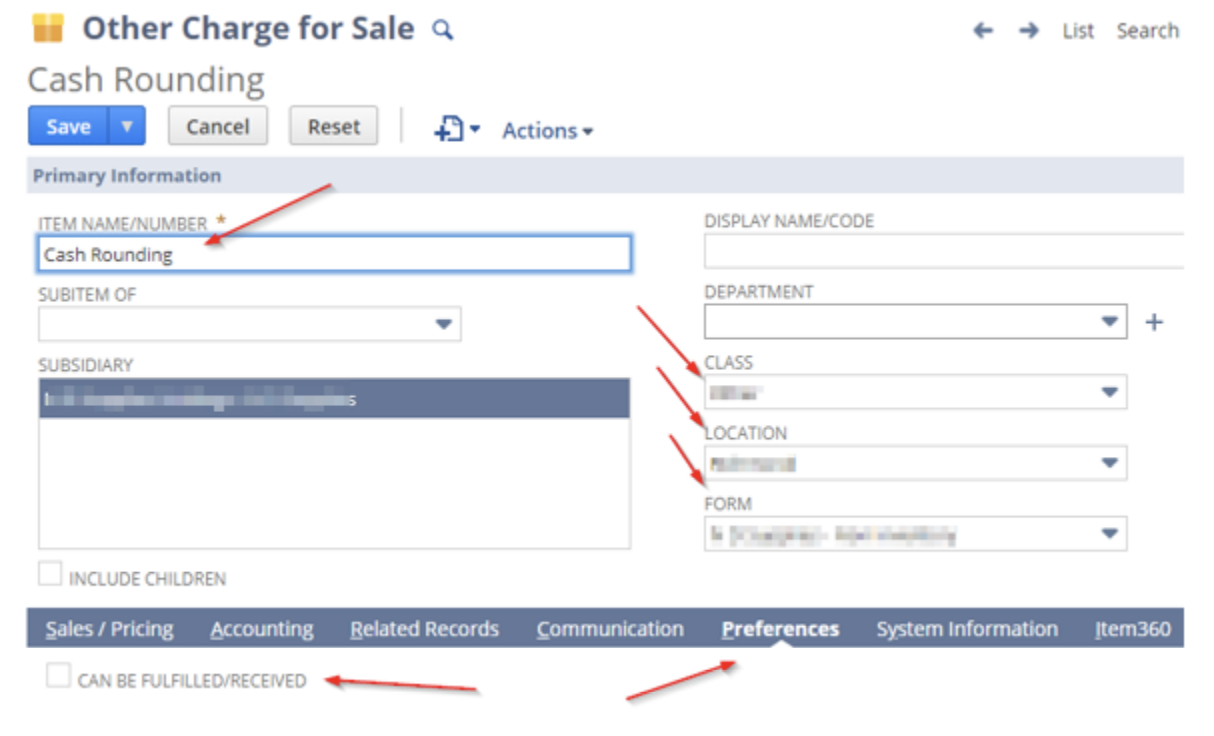
| 6 | Rounding Item | If selecting a product and the totals do not match, this Setting will add the rounding item. This option is strictly used for Cash Rounding in Lightspeed X-Series for countries and regions that require that transactions account for the rounding of pennies. To allow the Lightspeed X-Series Bundle to list the Rounding as a line item in the corresponding NetSuite order, you must also list an ‘Other Charge for Sale Item.’ To create a cash rounding item:
 | ||
| 7 | Skip Fulfillment After Generating Sales Order | If you prefer NOT to create item fulfillment after sales order creation, check this box. This option is also a specific-use case and does not take action within the Bundle alone. A secondary script for each use case is also required for this Setting. Contact In8Sync Support for more information. | No | |
| 8 | Skip Sales Order and Generate Cash Sale | Check this box to skip the sales order and item fulfillment process. This will order the system to NOT create Sales Orders, but generate Cash sales/Invoices ONLY instead. When orders are synced from the Lightspeed X-Series Queue List, Cash Sales/Invoices are created by default. NetSuite’s default billing for sales orders is to create invoices, unless Payment Methods are otherwise configured to generate Cash Sales. See Payments for more information. | Yes | |
| 9 | Create Refunds | If handling returns or exchanges in Lightspeed X-Series, this box should be checked. | Yes | |
| 10 | Use Matrix Item Name Template Field to Sync Attributes | Check this box if you wish to sync Matrix Child Items' attributes solely by the ‘Matrix Item Name template’ field present on the parent item. The system will then ignore the custom attributes mapping table and will use this template field instead. | Yes | |
| 11 | Use taxamountoverride on Sales | If you don't wish to set any tax item and mark the transaction as taxable, keep this box checked. This Setting is used when Lightspeed X-Series orders are syncing into NetSuite and the tax for the Lightspeed X-Series order is to be listed on the NetSuite order. Uncheck this box if using Avatax or if you want NetSuite to choose the appropriate tax amount. | Yes | |
| 12 | Enable taxamountoverride on Returns | Whether creating Returns against the original order or creating ‘standalone’ Returns, this Setting will match the Returns' Tax Amount with the Tax Amount on the Lightspeed X-Series order. It is recommended that this Setting be enabled to ensure that the Returns/Exchanges created by Lightspeed X-Series have the correct tax totals. | Yes | |
| 13 | Use Tax Rate from Tax Schedule | Check this box if you wish to sync Item prices from NetSuite to Lightspeed X-Series by adding that Item’s tax rate specified on the tax schedule’s tax code. To use this Setting, you must also define nexus to store mapping in the ‘In8Sync Vend NetSuite to Lightspeed (X) Store Mapping’ custom record. Please contact In8Sync Support for assistance with this feature. | No | |
| 14 | Price Includes Tax | This box must be checked if the Lightspeed X-Series Instance uses the Inclusive Tax option, or ‘Price Includes Tax.’ This Setting will ensure that the amount from Lightspeed X-Series is listed in the gross amount field to function as a set price including tax. (Please Note: The Tax Amount Override Setting should not be enabled if this Setting is enabled, and vice versa. These are competing Settings that conflict with each other.) | No | |
| 15 | Create Deposit on Sales Orders | Enable this setting only if “Skip Sales Order and Generate Cash Sale” is not enabled. | ||
| 16 | Do not set Default Addresses | If enabled, this Setting will NOT automatically set a newly-added address as Default Billing or Default Shipping. If this box remains unchecked, new addresses will be added as Default. | No | |
| 17 | Enforce Location Address no Orders | This Setting enforces the Location Mapping listed addresses on the Order, unless the Order is ‘DELIVERY UNFULFILLED.’ In that situation, the Lightspeed X-Series Customer address or NetSuite address will be allowed for shipping purposes. | true | |
| 18 | Enable Sales Order Sync to Lightspeed | When enabled, this Setting allows syncing of Sales Order to Lightspeed X-Series. | false | This requires Advanced Setup and mapping and conditions configuration to work properly. Otherwise it will not work, even is Setting is enabled. |
| 19 | Site Walk-In Customers | This field will only reference to the first Walk-in customer created via sync when the 1st order without customer creates the WALKIN Customer for that site. Then only used to create orders for a Use case where an Order from the Site's JSON Customer Object is empty. |
Items/Customer
Field Name | Description | Default Value | Notes | |
|---|---|---|---|---|
| 1 | Sync Items to Lightspeed on Create/Edit | Check this box if you wish to auto-trigger the sync for NetSuite to Lightspeed X-Series dataflows and sync products to Lightspeed X-Series when they are created. (Please Note: This Setting is generally reserved for very specific-use cases by In8sync Support. In8Sync does not recommend enabling this option.) | No | |
| 2 | Sync Customers to Lightspeed on Create/Edit | When enabled, this Setting automatically syncs customers to Lightspeed X-Series when they are created. (Please Note: This Setting is generally reserved for very specific-use cases by In8sync Support. In8Sync does not recommend enabling this option.) | No | |
| 3 | Disable Stock Updates | This setting disallows stock updates when Items Sync and Scheduled Stock Sync is scheduled within Tools. | Yes | |
| 4 | Stock Sync (On transactions today only) | When enabled and the stock sync is scheduled and running, this Setting will only update Stock on Items that appear on day-of or ‘Today’s' Transactions. This helps to reduce the amount of Items needed to update Stock, allowing for more frequent stock schedule updates. Affected Transactions include:
| No | |
| 5 | On Transactions since Last Stock Sync | If checked, this Setting will run stock sync on Transactions handled since the Last Stock Sync. | Yes | |
| 6 | Last Stock Sync on Transactions | Records the date the Stock Sync last ran. | ||
| 7 | Stock from Components (Kit Items) | If enabled, the Stock of a Kit Item will be calculated from the Stock of its Components. | No | |
| 8 | Use Bin with Largest Quantity | If enabled, the connector will use the bin with maximum Quantity Available of the Item to configure inventory detail on Item fulfillment. | No | |
| 9 | Select Stock Level Field | By default it syncs Quantity Available as the standard in NetSuite. NetSuite utilizes a non-editable function to determine the Quantity Available for Sales Orders, Transfer Orders, and Purchase Orders. NetSuite cannot process Transfer Orders to Fulfill/Receive Stock that does not appear as Available. If selecting the Quantity on Hand, please note that the available stock amount will not be shown on Lightspeed X-Series. If using this parameter, you may encounter errors when syncing Transfer Orders in NetSuite for items that show as '0' or backordered, preventing fulfillment in specific circumstances. You should never Transfer Stock that has a Quantity Available of '0'. In8Sync strongly recommends that you use the Quantity Available Setting to ensure accurate stock totals within NetSuite. | Quantity Available | |
| 10 | Send Suppliers from Vendor Sublist | When enabled, this Setting scans the Item Vendors Sublist and syncs it to Lightspeed with the Item in order to retrieve the Lightspeed ID for the Vendor and set the suppliers on the Item. Enabling Setting requires the Vendor Parameter to be set to active. When set in the sublist, Preferred Vendor will be first-listed on the Lightspeed Item. | No |

Gift Cards
Field Name | Description | Default Value | Notes | |
|---|---|---|---|---|
| 1 | Allow GC Expiration Date | When enabled, if a Lightspeed X-Series Gift Card to be used on an Order is expired in NetSuite, the Sync will update the Gift Certificate Expiration to the next day to allow that order to sync into NetSuite. | No | |
| 2 | Gift Certificate Items | Listing at least one (1) Gift Certificate Item automatically enables this setting. When the chosen Gift Certificate items appear on orders, the created Gift Certificate codes will be synced to Lightspeed X-Series so that they are usable on Lightspeed X-Series as well. (Please note: NetSuite generated Gift Certificates automatically send an email with the code details to the listed Gift Certificate recipient. If the Sales Order is configured to ‘Send Email’ to the recipient on the Transaction Record, they should receive details via that route as well.) |
Price Books
Price Books are custom records stored in your Lightspeed X-Series that contain the Lightspeed X-Series Price Book IDs and map them to NetSuite’s price levels.
To learn more about Price Books, please go to the Price Books Sync page.
Field Name | Description | Notes | |
|---|---|---|---|
| 1 | Name | Name of the Price Book record | |
| 2 | Inactive | If checked, this Setting will not allow syncing Price Books to Lightspeed X-Series. | |
| 3 | Lightspeed X-Series Setting | Lightspeed X-Series site where the Price Book is located | |
| 4 | Price Book ID | Lightspeed X-Series Price Book ID | |
| 5 | Price Level | NetSuite Price level |